Vault Scripts and Script Settings
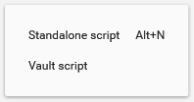
From 4.0.80, standalone PDMShell uses one main editor for both standalone files and vault scripts. The separate Vault Script Editor toolbar button is replaced by choices under New, Open, and Save. Evaluate remains on the toolbar.
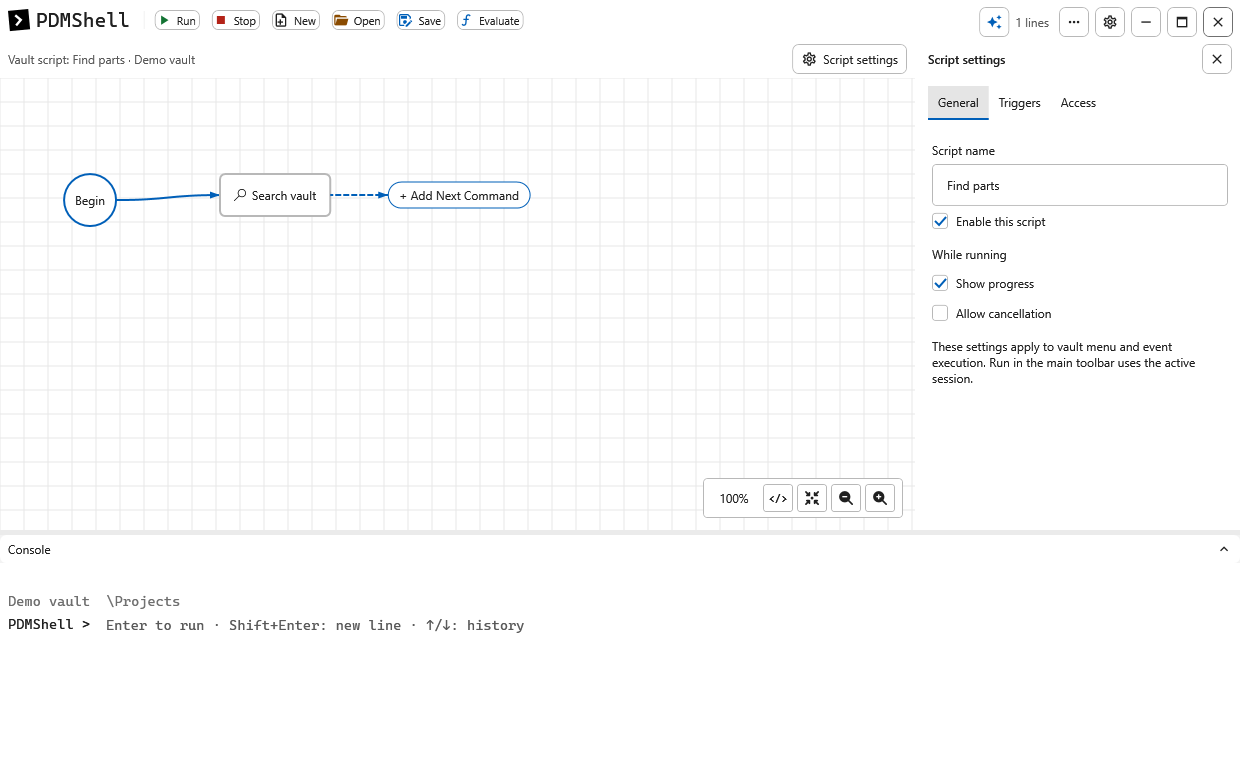
Screenshots on this page show the actual 4.0.85 controls with sample data, not a live vault.
Open or create a vault script
- Log in to the vault in the active PDMShell session.
- Choose New > Vault script for a new draft, or Open > Vault script… to choose an existing script.
- Edit the workflow in the visual editor. Use the code-view control to edit its command text.
- Open the gear-labeled Script settings panel to configure the vault behavior.
- Choose Save to publish the code, visual layout and settings to that vault.
Managing vault scripts requires the SOLIDWORKS PDM Edit add-ins permission. The document heading identifies the script and its vault. If you switch vaults, reconnect to the document's original vault before saving it or editing its conditions.
Scripts open in visual view first. The console remains below the editor. Drag the sidebar divider to resize settings; use its X to hide it and the Script settings gear to show it again.
Script settings
| Tab | Settings |
|---|---|
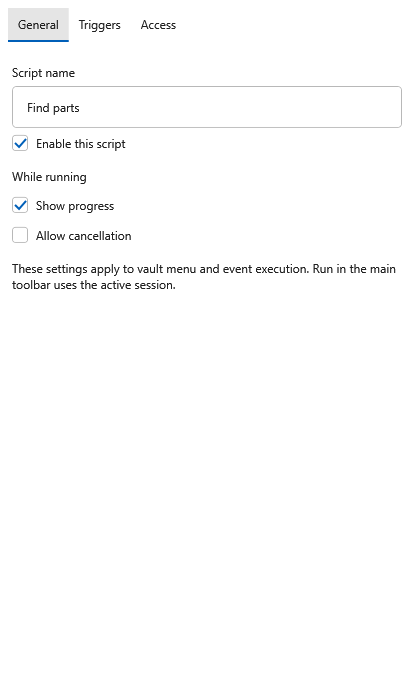
| General | Script name, enabled state, progress display and cancellation. |
| Triggers | PDM menu visibility and label, event triggers, conditions and condition test messages. |
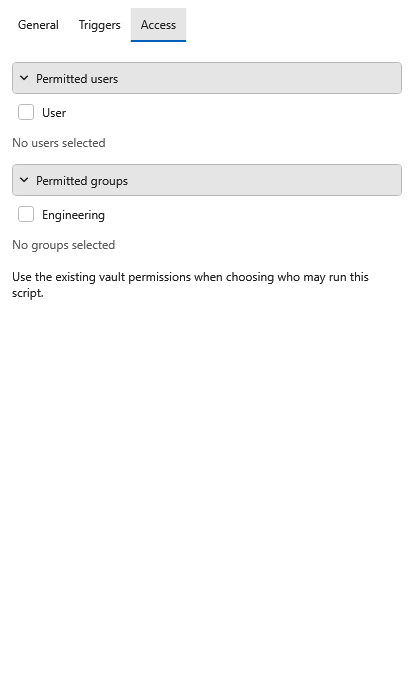
| Access | Permitted users and groups. |
Expand Run on PDM events to choose trigger points. These settings govern execution through the vault add-in; Run in the main toolbar uses the active standalone session.
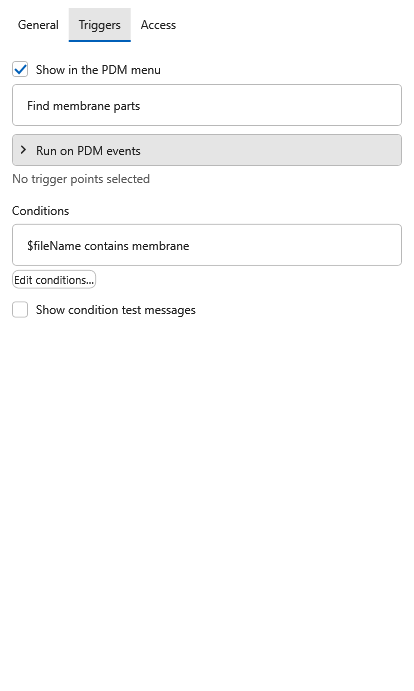
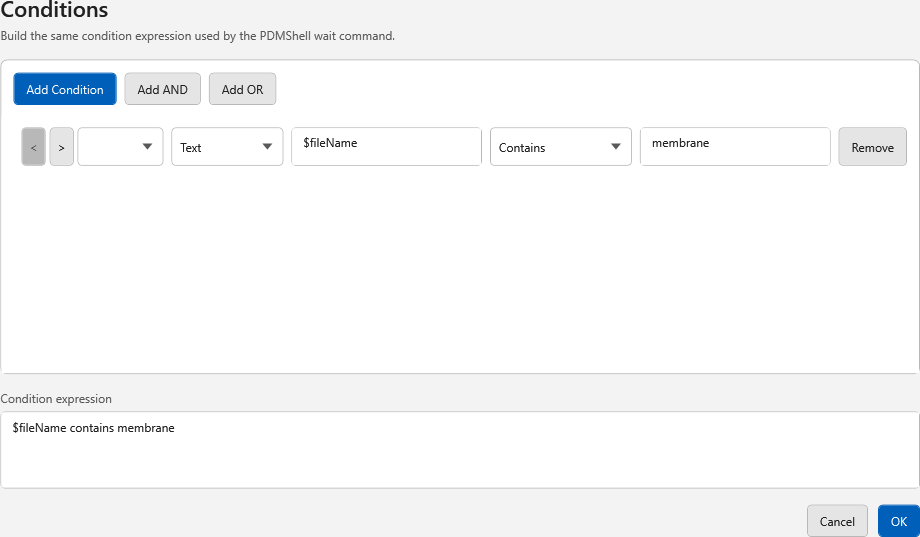
Select Edit conditions… to build the same condition expression used by the PDMShell wait command. Conditions and permissions are saved together with the script, not independently.
See Permissions, Conditions, Command menu scripts, and Event trigger points for execution rules.
Save and protect your draft
Vault edits remain local drafts until you explicitly Save. Vault scripts are not automatically saved. New/Open and closing a tab or the application prompt about unsaved changes. A failed or cancelled save does not discard the draft.
Before saving, PDMShell rereads the stored library and preserves unrelated scripts and their access settings. If the selected script changed or was removed since you opened it, saving is rejected and your draft remains in the editor. Save it as a new vault script or reopen the latest version.
When a change affects menus, triggers or permissions, PDMShell tells you to restart PDM Explorer so registration can refresh.
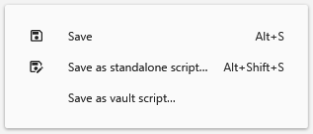
Save as standalone script… creates a .pdmshell file with code and visual layout, without vault settings. Save as vault script… starts a new vault draft; review its name and settings, then Save to publish it. Copying an existing vault draft preserves its settings within the same vault.
Find or delete a saved vault script
Choose Open > Vault script… and type in the filter box to narrow the script list.
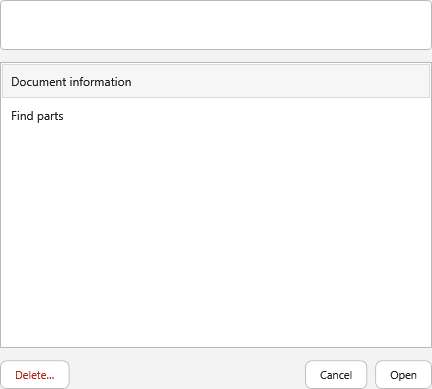
Select a script and choose Delete… to remove it. You must confirm the deletion. PDMShell rechecks permissions and refuses deletion if the script changed since the list was opened.
Warning
Deletion immediately removes the saved script and its settings from the vault. It cannot be undone in this dialog, and choosing Cancel afterward does not restore it. Keep a backup of important scripts and settings.
AI drafts and running
AI inside PDMShell works beside the unified editor. Use draft… replaces the draft's code after confirmation, preserves its vault settings, and expands the code area for review. It does not run or save the script.
Run executes in the active standalone session. Saving a vault script is a separate action.
Warning
Running commands can change real files or vault data even while the editor contains an unsaved draft. Stop requests cancellation; it does not undo completed operations. Vault add-in execution and standalone execution retain their respective licensing requirements.
Standalone-only editing
In 4.0.83 and newer, script editing, visual layout, conditions and AI assistance are available only in standalone PDMShell. The add-in keeps command/event execution, tasks, licensing, permissions and performance tools; it no longer hosts an editor or AI chat.
Open standalone PDMShell, log into the vault, and use New/Open > Vault script. Existing saved scripts and layouts remain supported. A PDM task imports a separate copy of a script; later source changes do not update that task automatically. See PDM tasks.