Manage vault add-in licenses
Manage a vault's PDMShell licenses from the standalone app. You do not need to open PDM Administration or install/update the add-in just to open license management.
Open the manager
- Open standalone PDMShell Settings > Vault add-in.
- Under Vault add-in licenses, select the target vault. Refresh vaults reloads the list.
- Select Manage licenses and sign in with a PDM account that has Edit add-ins permission.
- Check the vault name in the manager before making changes.
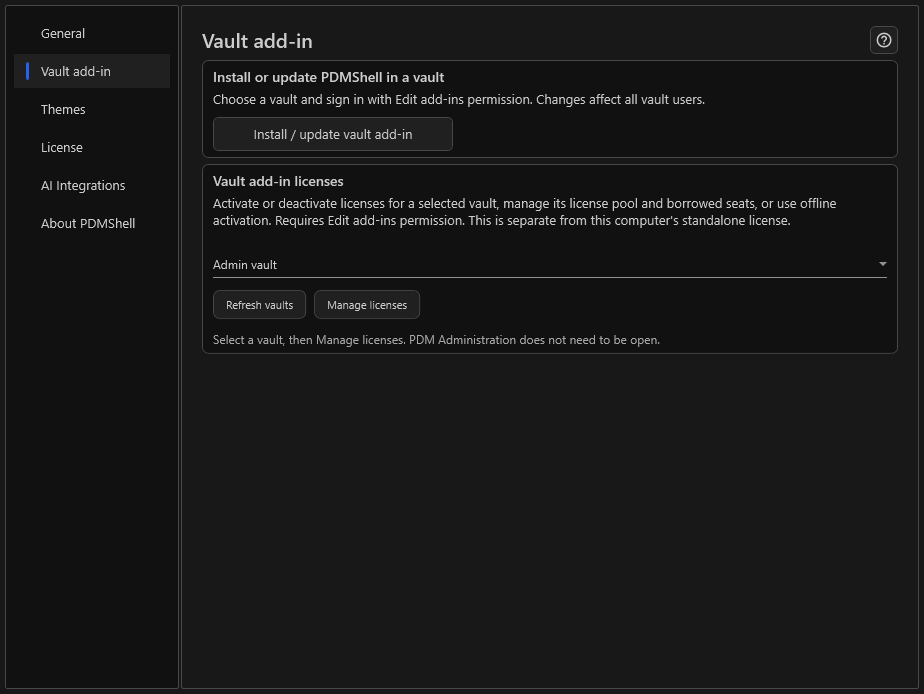
The manager runs in a separate process. Opening it does not activate a license. The existing Manage Licenses... entry in PDM Administration remains available for compatibility.
Important
Settings > License activates the standalone computer. Settings > Vault add-in > Manage licenses manages the selected vault's add-in licenses. These are different scopes.
Choose the license source
| Source | What execution uses |
|---|---|
| Vault license pool | Enabled, activated seats stored for the vault, borrowed when required. |
| Each machine's license | The local standalone PDMShell license on the executing workstation. |
Select the source and choose Save changes to persist vault settings. See License pool and Machine license.
Add, activate or deactivate keys
The Licenses tab groups day-to-day actions.
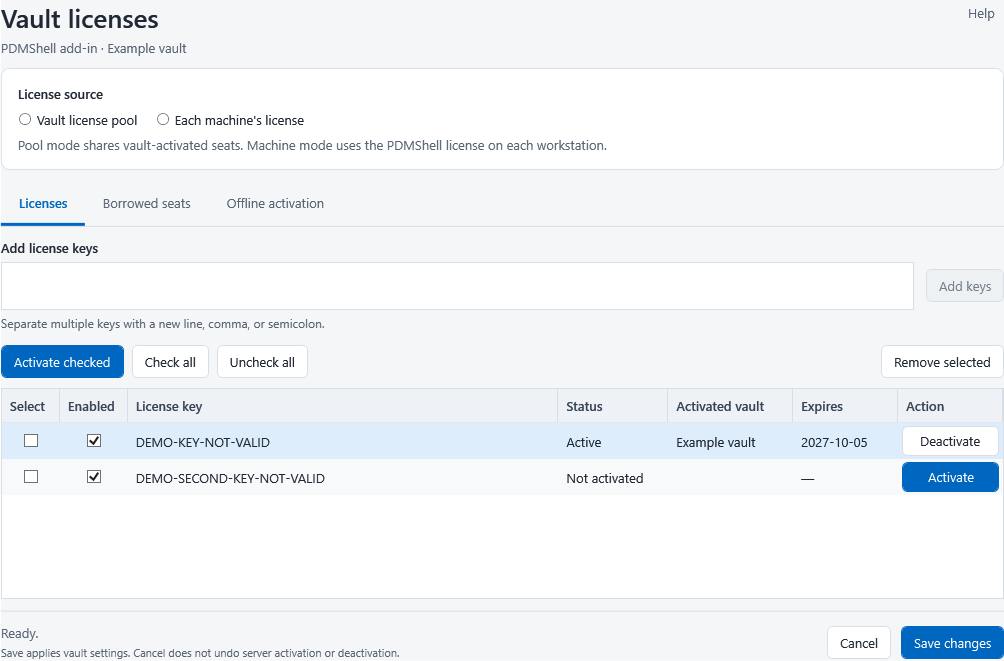
- Paste keys into Add license keys, separated by a new line, comma or semicolon.
- Select Add keys.
- Use a row's Activate action, or select rows and choose Activate checked. Check all and Uncheck all affect this selection.
- Review Status, Activated vault and Expires. Use Enabled to control eligibility for use.
- Choose Save changes to save the vault configuration.
Use the row's Deactivate action to deactivate a license. Remove selected removes a key from the configured list; it is not the same as deactivating that license.
Warning
Activation and deactivation requests contact the licensing server immediately. Cancel does not undo them. Save changes persists local configuration changes such as mode, keys and enabled flags. Do not close the manager or its Settings host while an operation is running.
Borrowed seats
Open Borrowed seats to see vault, machine, user and borrowed time (UTC).
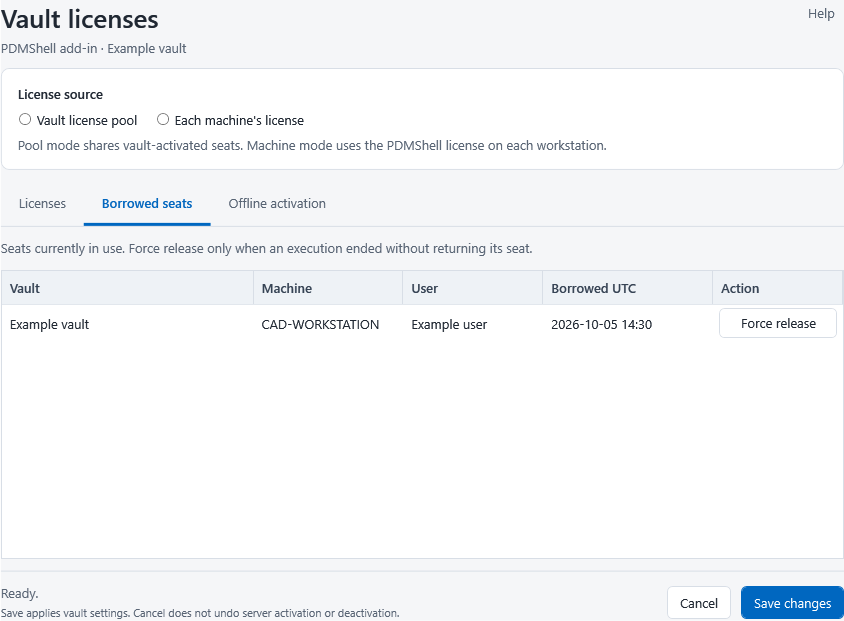
Use Force release only after reviewing the confirmation and coordinating with the affected user. Release is immediate and does not stop an already-running script. Configured eligible keys are not a guaranteed count of available seats; availability is checked when execution starts.
Offline activation
- Select the relevant license on Licenses, then open Offline activation.
- Choose Activation request or Deactivation request and save the request file.
- Use Open activation website, or transfer the file to an internet-connected computer. Support can also process activation requests sent to
info@bluebyte.biz. - Return to this vault and choose Import response with the returned response file.
- Review the status, then Save changes.
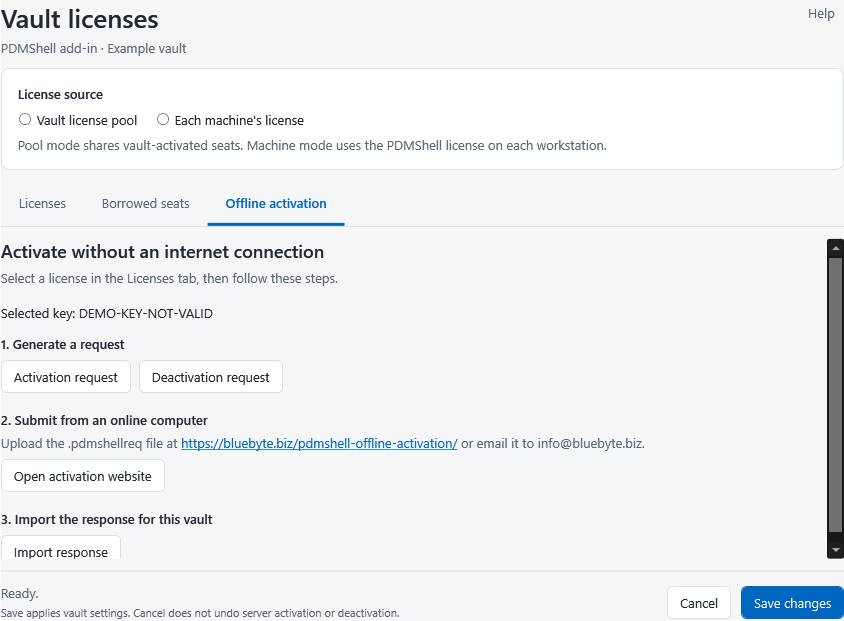
Request and response files are tied to the license and vault node. Do not import the response into a different vault. See Offline activation for the full transfer workflow.
Screenshots show actual 4.0.85 controls with synthetic vault data and invalid demonstration keys. No licenses were activated or released.