Use AI inside PDMShell
Use the embedded AI chat to write, explain and troubleshoot PDMShell scripts. Choose ChatGPT, Claude, or Ollama without leaving the editor. The blue sparkle button beside the line count opens the standalone AI pane; drag its divider to resize it.
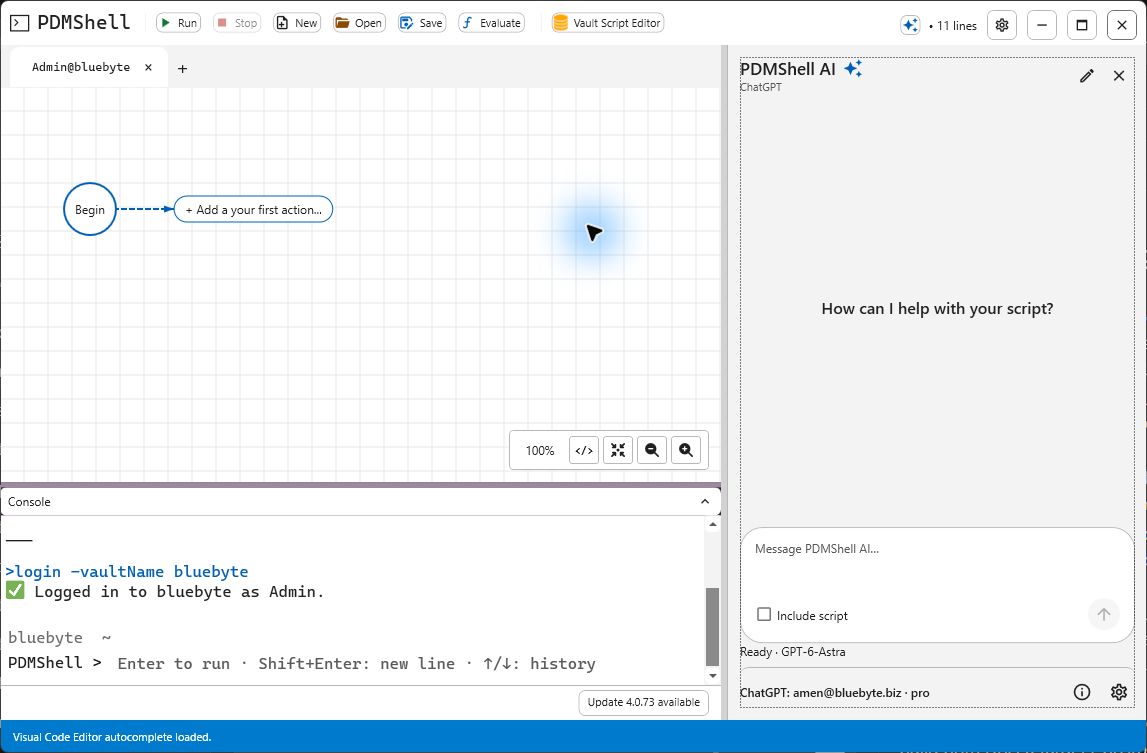
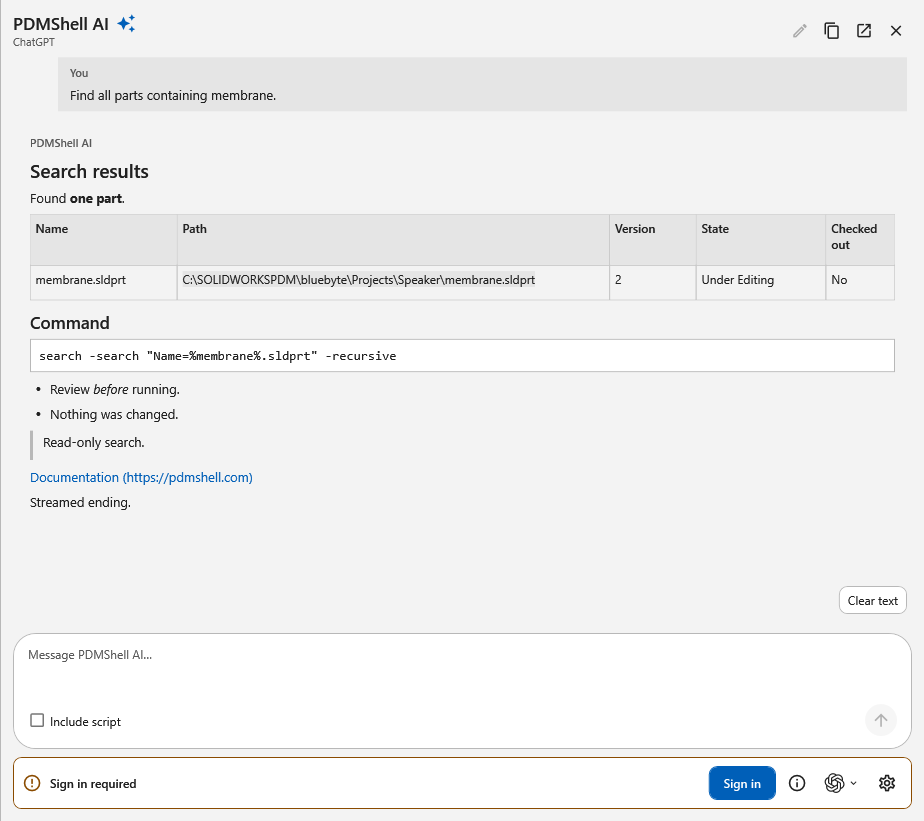
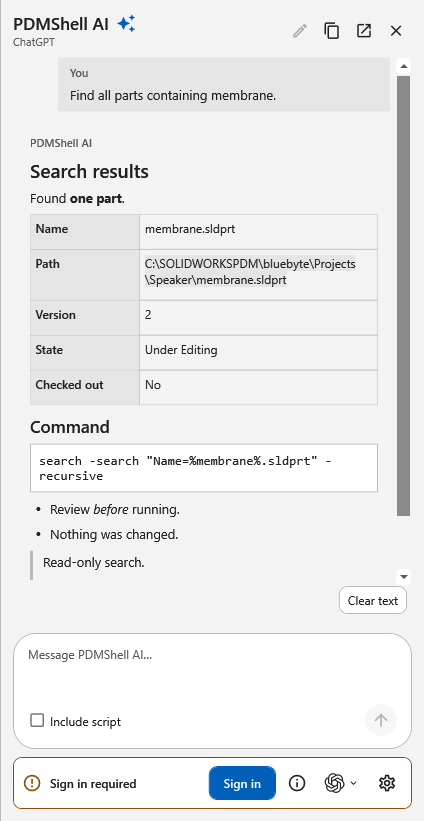
The overview session image is an earlier live capture; current 4.0.85 control screenshots use synthetic data and do not expose personal accounts or API keys. Rendered search results illustrate formatting, not a real vault query. Model names are examples returned by that runtime; availability depends on your runtime and account.
Warning
AI can generate incorrect commands. Review scripts before choosing Run, and inspect every tool approval. Running a command can modify real vault data. Stopping cannot undo completed changes.
Choose your provider
| Provider | Setup | Where prompts go |
|---|---|---|
| ChatGPT · Codex sign-in | Installed Codex CLI and an eligible ChatGPT sign-in. No OpenAI API key is requested by this integration. | OpenAI; account and model-access limits apply. |
| Claude · API key | Your Claude Console API key. Optional encrypted storage for this Windows user. | Anthropic; API usage is billed separately. |
| Ollama · Local & cloud models | Ollama running on this computer with an available chat model. Sign in through Ollama for cloud models. | The local Ollama runtime, which may forward prompts and tool results to a cloud model. |
Your PDMShell license, vault permissions, and AI-provider access are separate. A model appearing in a list does not guarantee that your account can complete requests with it.
Saved connections and switching
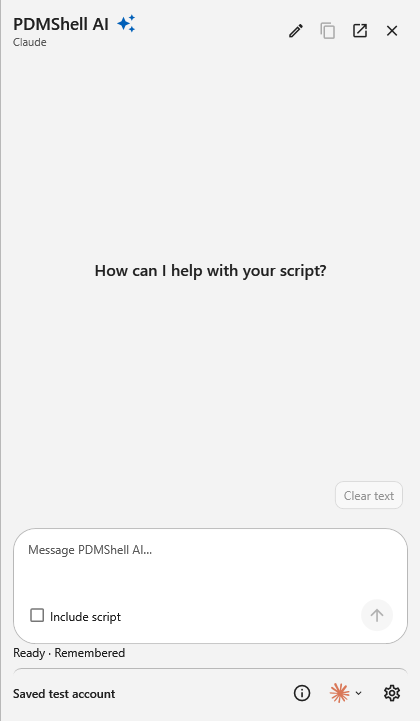
PDMShell remembers each provider separately. ChatGPT reconnects through the saved Codex sign-in, Claude can reconnect from its protected API key, and Ollama reconnects to the saved endpoint. Each provider also remembers its selected model.
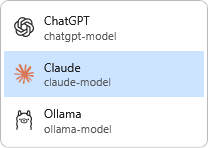
Use the compact provider-logo menu beside the AI settings gear to switch between saved ChatGPT, Claude and Ollama connections. Switching providers starts a fresh chat, so the previous provider's conversation context and chat-scoped approvals are not carried forward.
Open AI and its settings
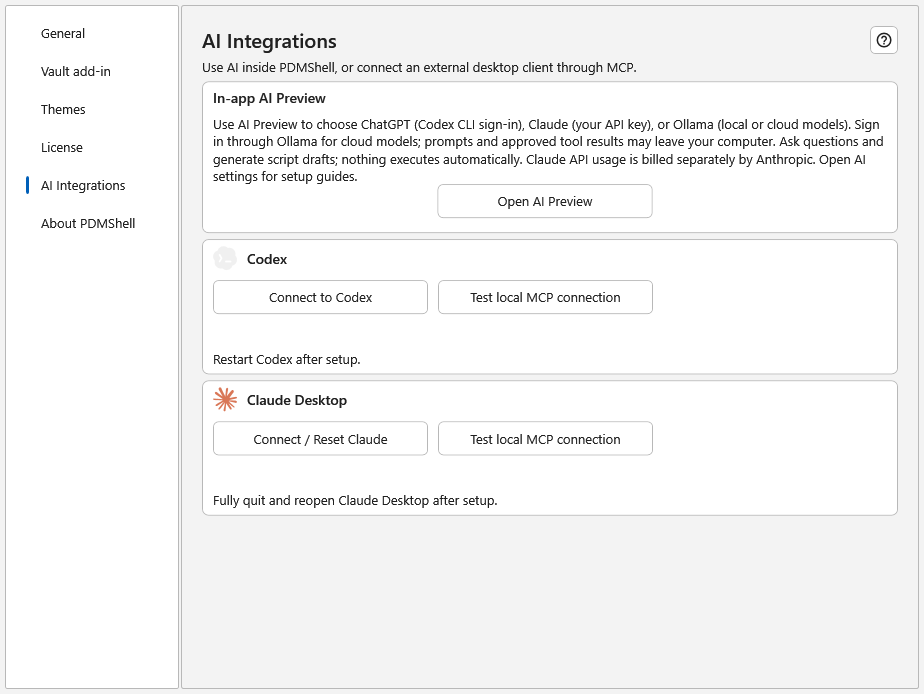
- Select the blue sparkle button beside the standalone line count. Alternatively, open Settings → AI Integrations → Open AI Preview.
- Select Sign in or Connect at the bottom, or open the settings gear.
- Choose a provider and follow its setup steps.
- Choose a model, then select Done. Reopen the gear to change models or disconnect.
The information icon beside the gear contains connection, privacy and usage notes. Important sign-in prompts and errors remain visible in the chat. Clear text clears the displayed transcript only; use New chat when you want to reset conversation context and chat-scoped approvals. Neither action logs out of your vault.
ChatGPT
PDMShell looks for the Codex CLI executable, including common local installation locations. If discovery fails, use Browse or the installation-help link. The Codex desktop application is not required. Complete the browser sign-in yourself, return to setup, choose a model and select Done. In 4.0.78, PDMShell remembers the saved sign-in and selected model for reconnecting. For current runtime installation and account requirements, see the official Codex CLI guide and authentication guide.
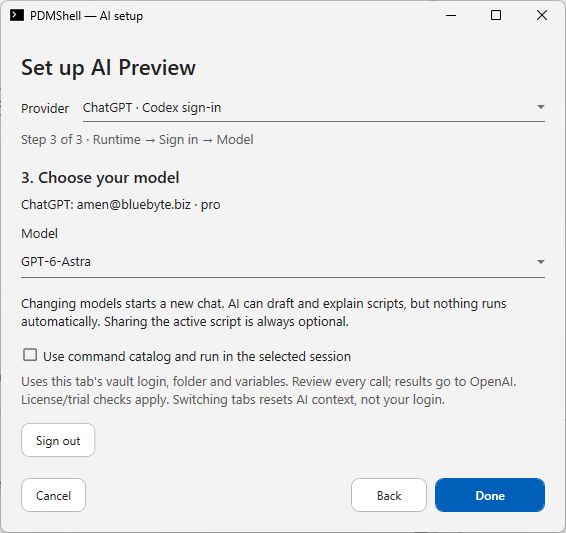
The dropdown uses the model list returned by your connected runtime. Availability depends on the provider, runtime version and account. Changing the model starts a new conversation.
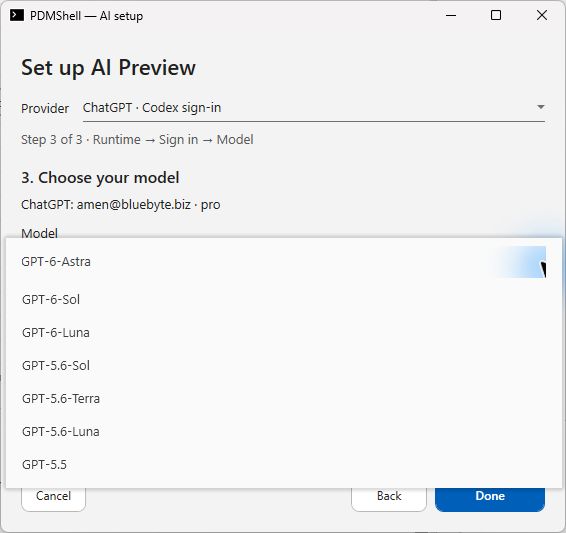
See ChatGPT and Codex setup for the separate external MCP workflow too.
Claude
Choose Claude · API key, enter your key in the masked field, connect, and select a model. Remembering the key is optional; PDMShell encrypts remembered keys for the current Windows user and remembers the selected model. Do not put keys in chat or scripts. Claude Desktop and Claude Code are not required for this integration.
PDMShell 4.0.78 improves Claude response handling, including Claude thinking and redacted-thinking blocks, without exposing private reasoning. Tool-call validation and approval checks still apply.
Follow Create a Claude API key and connect it to PDMShell for the key-creation, billing and troubleshooting steps.
Ollama: local and cloud models
Start Ollama and make a chat model available in it, then choose Ollama · Local & cloud models. Leave the default server address as http://127.0.0.1:11434/ unless your local runtime uses another port. PDMShell connects only to a loopback address on this computer; Ollama handles cloud routing and sign-in.
Select Connect to Ollama, choose a model from the returned list, and select Done. Known cloud entries have a Cloud suffix. PDMShell remembers the endpoint and selected model for reconnecting. PDMShell does not install Ollama, download models, or sign into Ollama for you. If the list is empty, add a model in Ollama and reconnect. A model family such as Qwen is selected here as a model, not as a separate provider.
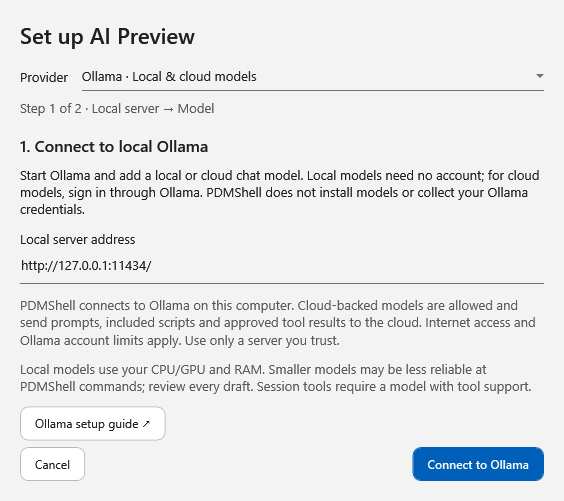
This setup image is a rendering of the application's controls, not evidence of a connected Ollama server.
For cloud models, sign in using the Ollama app or CLI; internet access and account limits apply. Prompts, conversation context, included scripts and approved tool results may leave your computer. See Ollama's setup guide and cloud guide.
Downloaded local models use your own CPU/GPU and RAM. Smaller models may be less reliable at PDMShell syntax. Session tools require a model that advertises tool support; leave that option off for models without it.
Ask, review, and run
- Select the intended standalone session tab and sign into the vault normally if the task needs one.
- Describe your task in Message PDMShell AI. Enter sends; Shift+Enter starts a new line.
- Optionally select Include script to share the active script with this message. It is off by default and resets after a successful response. Previously shared material remains in the conversation until context is cleared.
- Expand Script draft when a completed response contains code.
- Review the code and choose the action you intend:
| Action | Effect |
|---|---|
| Use draft… | Confirms replacing the editor text and expands the code area for review. It does not execute or save the draft. In a vault document, it preserves the script settings and triggers. Save your current work first. |
| Run under the AI draft | Runs the draft through the selected session's normal script runner without replacing the current editor script. Review console output for results. |
| Stop | Requests cancellation. Some PDM calls must finish before stopping; already completed operations are not rolled back. |
For example, ask:
Find all SOLIDWORKS parts whose filenames contain membrane in the current vault folder and its subfolders.
An example draft for this task is:
search -search "Name=%membrane%.sldprt" -recursive
The AI receives the installed command catalog and instructions to use full parameter names, such as -directory, rather than aliases such as -d, so drafts work with the visual editor. Review the command reference and search guide if the output is uncertain.
Replies render as selectable Markdown. You can select text from headings, lists, tables and code blocks. When the pane is too narrow for a wide table, PDMShell displays each row as a labeled record so the values remain readable.
Optional: let AI use command tools
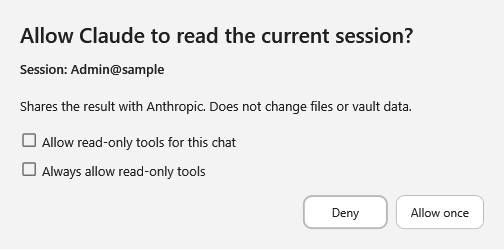
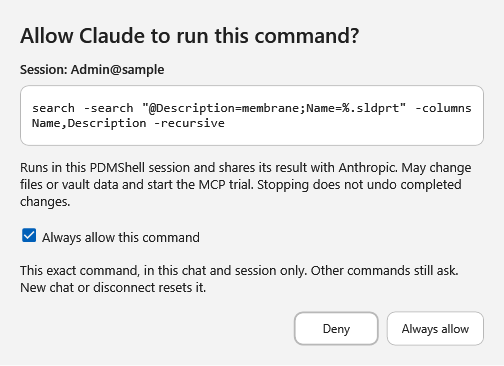
In the standalone model step, enable Use command catalog and run in the selected session. This gives the provider a controlled bridge to the same command catalog and execution behavior used by PDMShell's MCP integration. It runs inside the selected session, not a second standalone vault session or an external desktop client.
A call without a matching remembered approval asks you to review the session, tool and exact command. Approval dialogs show the plain command that would run instead of JSON-wrapped arguments. Allow once approves that one local call and sends its result to the selected provider. Always allow read-only tools can persist across chats and restarts; turn it off in AI settings to revoke it. You can also approve one exact command for the current chat and session. Other commands still require approval. Deny or closing the dialog rejects that call. Results may include vault names, paths, usernames, metadata and command output.
Approved commands use the selected tab's vault login, current folder and variables. Console/history shows the execution, while AI receives the result or error. Existing vault permissions, command licensing and MCP Premium/one-time-trial checks still apply. Unsaved editor text and unfinished console input are preserved.
Switching tabs resets AI context on the next message. A pending call cannot silently move to another session. Busy sessions reject new calls. Tool activity and approval notices stay in one updating status entry before the final answer, making it easier to see the current state without losing the response. Check the conversation's tool activity and console before retrying a failed or cancelled operation.
AI with vault scripts
From 4.0.80, standalone PDMShell edits vault scripts in the main editor through New/Open > Vault script. Use the normal AI pane beside that editor. Use draft… changes the draft's code, preserves its vault settings, and expands code view without running or publishing it. Save publishes the code and settings together. Main-toolbar execution and approved session tools use the active standalone session. See Vault scripts and Script settings.
Standalone-only editing
In 4.0.83 and newer, script editing, visual layout, conditions and AI assistance are available only in standalone PDMShell. The add-in keeps command/event execution, tasks, licensing, permissions and performance tools; it no longer hosts an editor or AI chat.
Open standalone PDMShell, log into the vault, and use New/Open > Vault script. Existing saved scripts and layouts remain supported. A PDM task imports a separate copy of a script; later source changes do not update that task automatically. See PDM tasks.
Privacy and troubleshooting
From 4.0.90, embedded AI and MCP share expression discovery for all 35 evaluator functions, aliases, variables, placeholders and revision helpers. This improves drafting guidance; it does not supply missing file context or grant execution permission. See expressions and script context. Serial-number and input expressions have side effects and should not be evaluated merely to preview a draft.
Never share vault passwords, API keys, license keys or confidential data in chat. Only include scripts and approve tool results your organization permits sharing. Open the information icon for provider-specific notes.
| Issue | What to do |
|---|---|
| Codex executable not found | Install/update the Codex CLI, then rediscover or browse to the executable. |
| Model listed but request rejected | Check provider access, account limits and runtime version; the list alone is not an access test. |
| Claude key or billing error | Follow the Claude API setup guide. |
| Ollama unavailable or no models | Start the local server, check its address, add a model in Ollama and reconnect. |
| Ollama cloud authorization or usage limit | Sign in through Ollama; check model access and plan limits. PDMShell does not collect Ollama credentials. |
| Ollama model has no tool support | Choose a tool-capable model or turn off session tools. |
| Response failed, stopped or incomplete | Reconnect if requested and ask for a smaller task. Partial responses are not accepted as runnable drafts. |
| Vault not logged in, session busy or license unavailable | Resolve it in the selected session, then send a new request. Never put vault credentials in chat. |
External desktop clients
The Connect to Codex and Connect / Reset Claude controls in Settings configure external desktop/CLI clients. They are separate from the embedded chat and may use a separate MCP session. Follow external Codex or Claude Desktop if that is your intended workflow.