PDM Tasks
A SOLIDWORKS PDM Task can run a PDMShell script through the PDMShell task add-in. This lets administrators create task definitions similar to the built-in Convert task, but the task body is a .pdmshell script instead of a fixed conversion script.
Use a PDMShell task when the automation should run through the PDM task system, appear in the Task List, use task host computers, run from a workflow transition, or process many selected files in the background.
What PDMShell tasks can do
PDMShell tasks can use the PDMShell command engine to automate vault operations from a PDM task definition.
- Run PDMShell scripts against selected files and folders.
- Use task execution methods and task host computers.
- Run immediately, on a schedule, or from a workflow transition.
- Limit the task to specific file extensions.
- Optionally expose the task in the File Explorer command menu.
- Control which users and groups can launch the task.
- Test scripts against a selected file or folder before saving the task.
Create a task
In the SOLIDWORKS PDM Administration tool, create a task under the Tasks node. On the Add-in page, select PDMShell as the add-in used by the task.
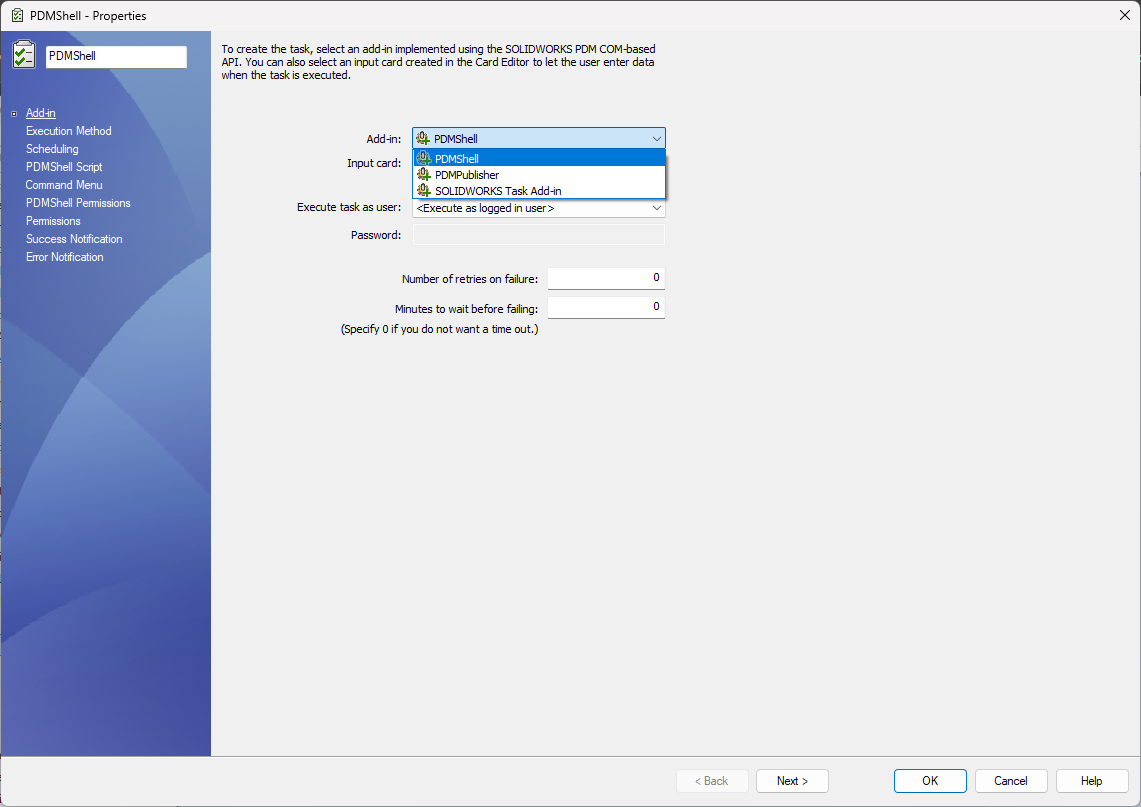
The standard PDM task pages still control the task shell:
| Page | Use it for |
|---|---|
| Add-in | Selecting the PDMShell task add-in and optional input card |
| Execution Method | Choosing which computers can execute the task |
| Scheduling | Running the task immediately, later, or on a schedule |
| Permissions | Controlling who can see, launch, or administer the task |
| Success Notification | Sending task success messages |
| Error Notification | Sending task failure messages |
PDMShell Script page
The PDMShell Script page stores the script that runs when the task starts. In 4.0.83 and newer, editing happens in standalone PDMShell; task setup shows a selectable, read-only preview.
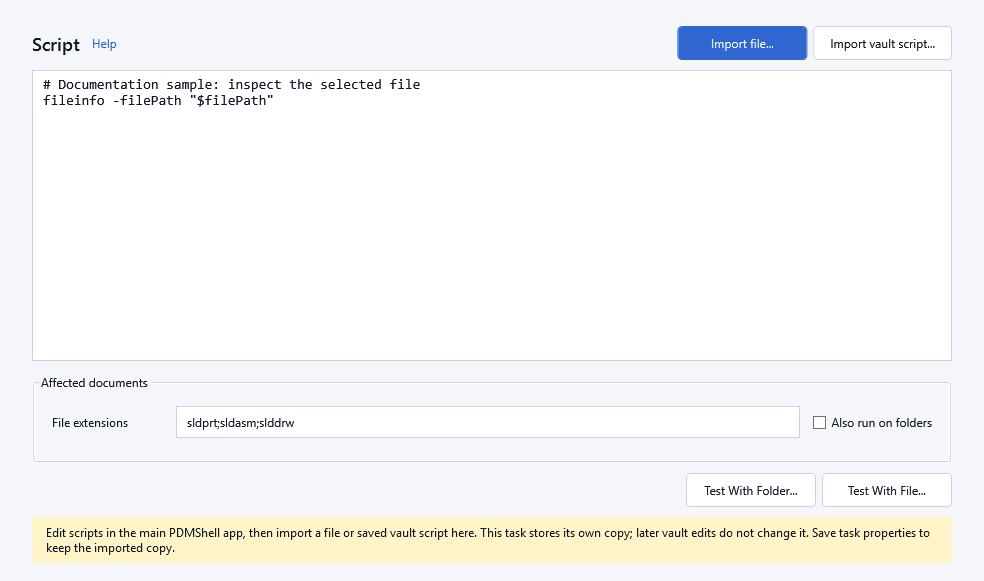
Actual 4.0.85 controls with sample script text; no task was run for this capture.
Use this page to:
- Choose Import file... for a standalone
.pdmshellor plain-text script. - Choose Import vault script... to copy a script saved in the connected vault.
- Confirm replacement if the task already contains a script, then save the task properties.
- Select the file extensions the task should process, such as
sldprt;sldasm;slddrw. - Enable folder processing with Also run on folders.
- Test the task script with a selected folder or file.
All computers selected in Execution Method must have PDMShell installed.
The imported script is a snapshot stored in the task, not a link. Editing or deleting its source vault script does not change an existing task. To update the task, edit in standalone PDMShell, import again, and save the task properties. Import preserves the task's file-extension and folder options.
Choose a saved vault script
In 4.0.86 and newer, Import vault script... opens a searchable script list with a read-only code preview, script counts and empty-state guidance. Filter the list, select a script, review its code, then choose Import copy. Cancel leaves the task unchanged. Confirm replacement when requested and save task properties to persist the imported copy. The source vault script is not modified.
The picker is resizable and supports keyboard navigation. Version 4.0.90 also fixes the task import buttons' caption contrast, including white text on blue actions.
PDMShell's obsolete task-input prompt has been removed. Do not depend on a PDMShell input dialog at launch or use $(InputName) as a task-input token. Normal PDM variable placeholders remain available. Standard PDM task configuration is separate.
Warning
Test With File... and Test With Folder... execute the task script against your selected item. They are not a dry run. Use a controlled test vault before testing commands that modify data.
Command Menu page
Use the Command Menu page when users should launch the task from File Explorer.
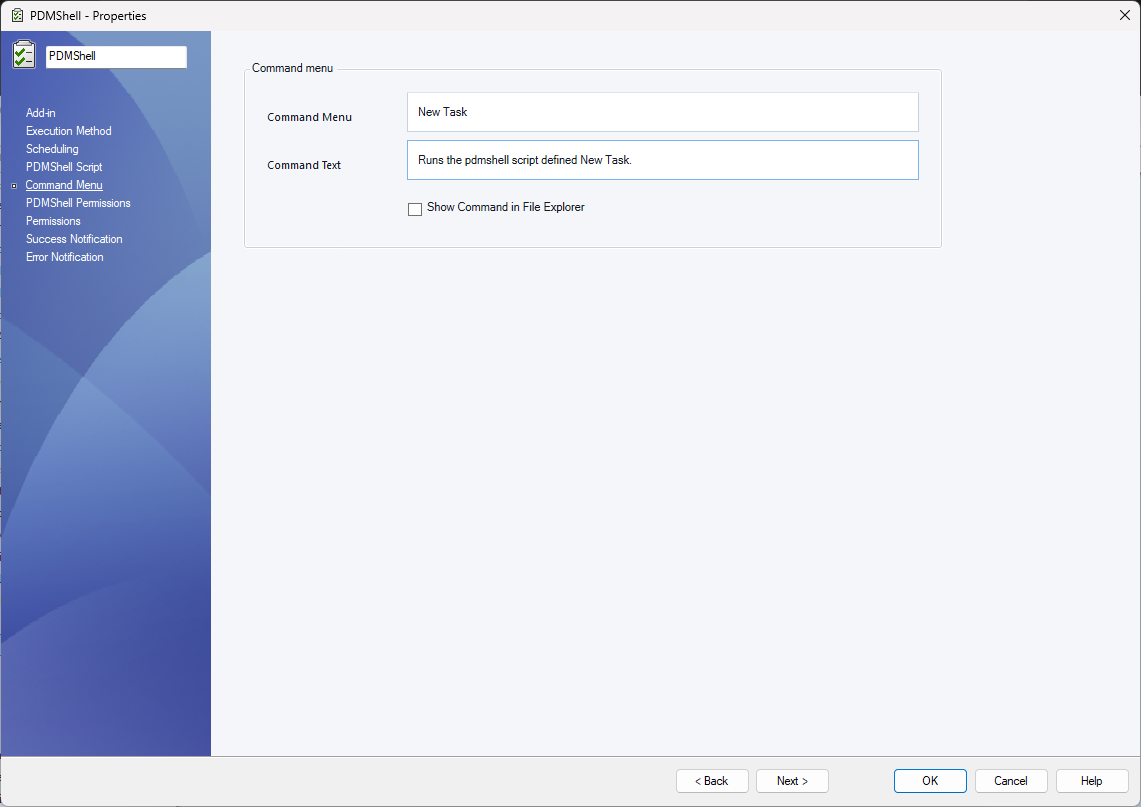
The command menu name is the label shown to users. Enable Show Command in File Explorer when the task should appear in the PDM right-click menu.
If the task should only run from workflow transitions, scheduled execution, or the Task List, leave the command hidden from File Explorer.
PDMShell Permissions page
The PDMShell Permissions page controls which users and groups are permitted to launch the PDMShell task, including from workflow transitions.
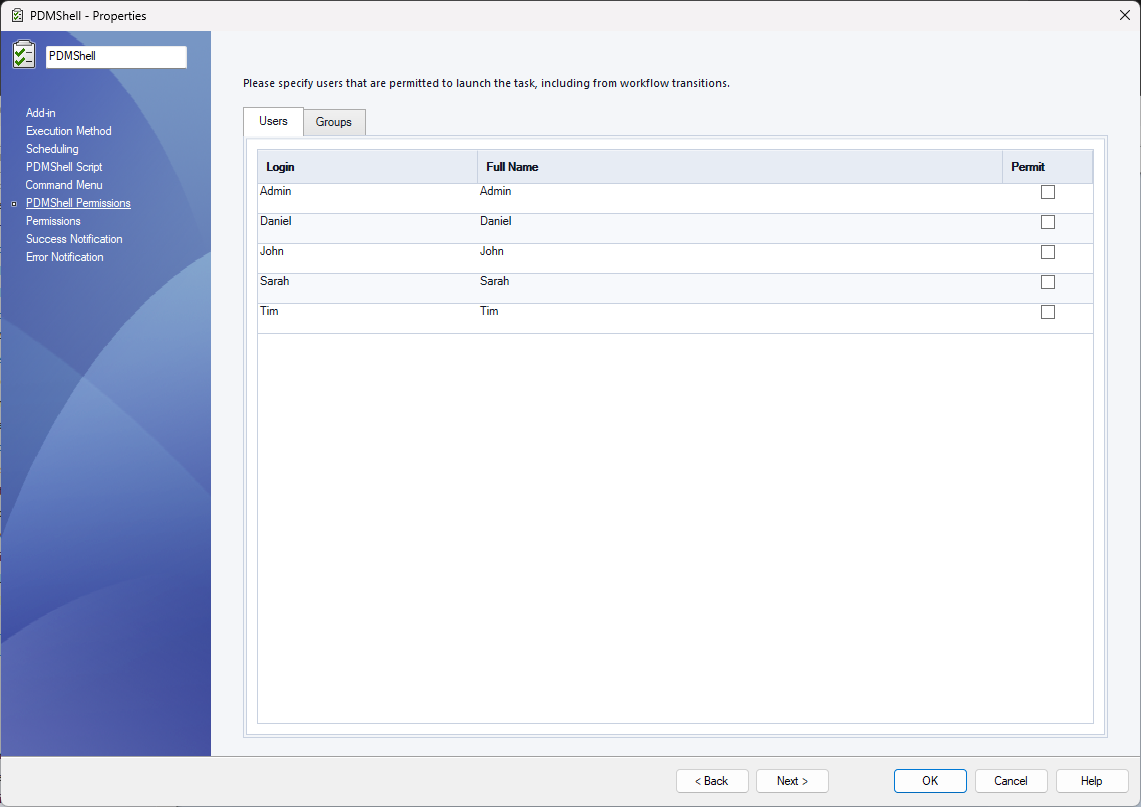
This page is separate from the standard PDM Permissions page. Use both permission pages together:
| Permission page | Purpose |
|---|---|
| PDM Permissions | Standard task visibility, administration, and launch permissions |
| PDMShell Permissions | PDMShell-specific launch permission for this script task |
Start with a small administrator group while testing. Expand access after the script, execution method, and file extension filters have been validated.
Similar to the Convert task
The PDMShell task follows the same task setup pattern users may already know from the SOLIDWORKS PDM Convert task:
- Select the task add-in.
- Choose where the task can execute.
- Configure scheduling and launch permissions.
- Define task-specific options.
- Run the task from File Explorer, workflow transitions, the Task List, or a schedule.
The difference is that PDMShell task logic is written as a PDMShell script. This makes it useful for custom automation such as metadata cleanup, batch variable updates, file exports, migration helpers, reference maintenance, task chaining, and scripted PDM administration.