Settings and License center
Open Settings using the gear button in the main toolbar. Choose a page on the left; licensing now has one entry point with separate computer and vault scopes.
Note
This layout is available in 4.1.0. In older builds, computer licensing is named License, and the vault selector is under Vault add-in. Screenshots are actual UI renders with synthetic data, not live license or installation results.
General preferences
Use General for startup, login, editor, and console preferences. The page scrolls when its contents exceed the window height. Values in the screenshot are examples, not recommended defaults.
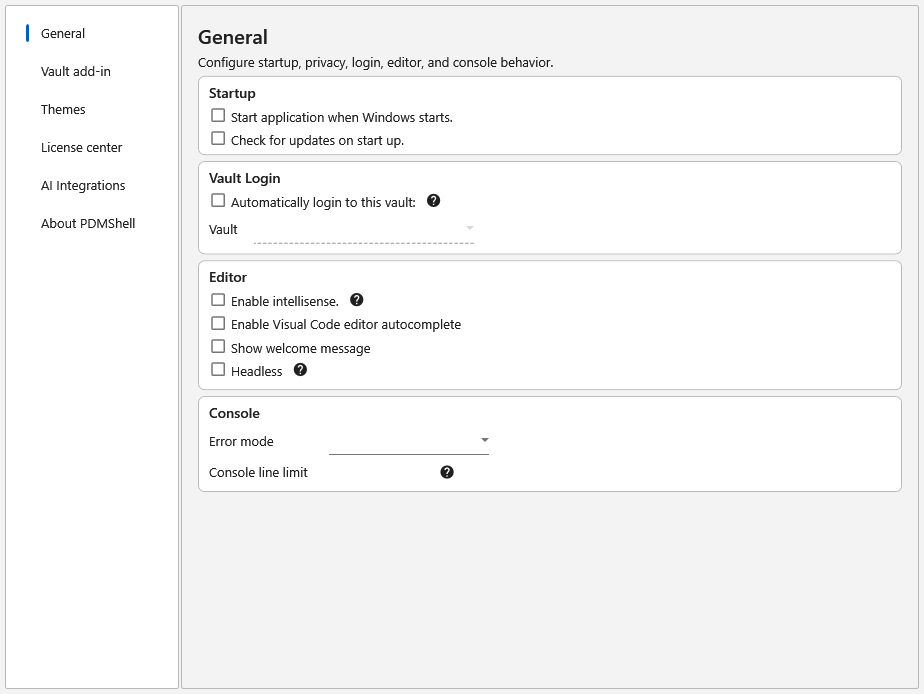
Optional installation reporting is controlled separately under About PDMShell > Privacy. See installation and privacy.
Vault add-in deployment
Use Vault add-in to install or update the add-in. Download CEX opens the Download Center for manual deployment; it does not install anything automatically. Open License center is a shortcut to vault licensing, not part of installation.
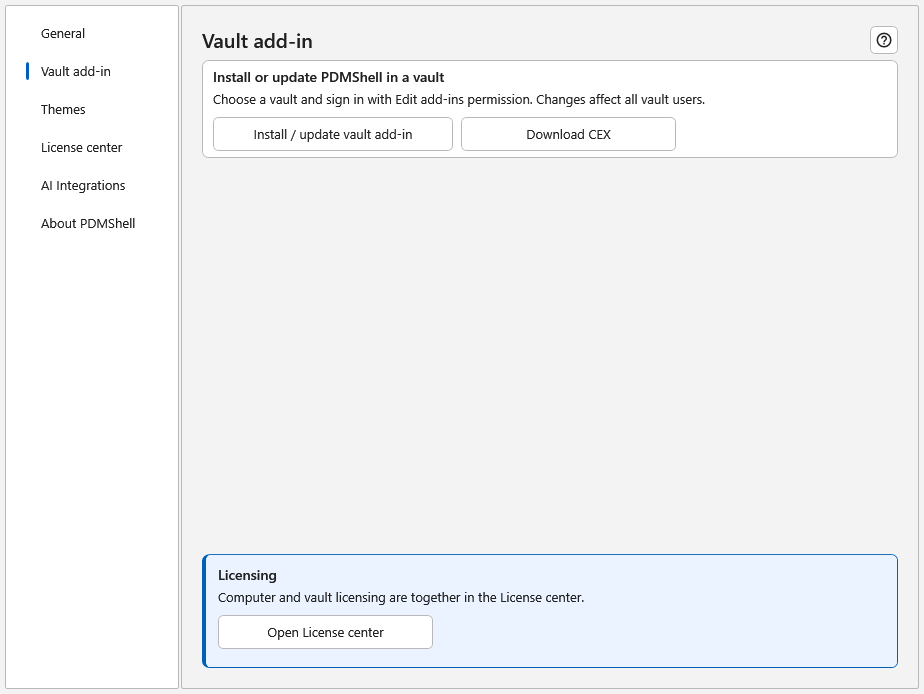
Deployment affects the selected vault's users. Review the vault and versions before confirming, and use an account with Edit add-ins permission. See install or update the add-in.
License center: This computer
Select License center > This computer for standalone PDMShell and MCP on this workstation. This does not modify a vault's license pool.
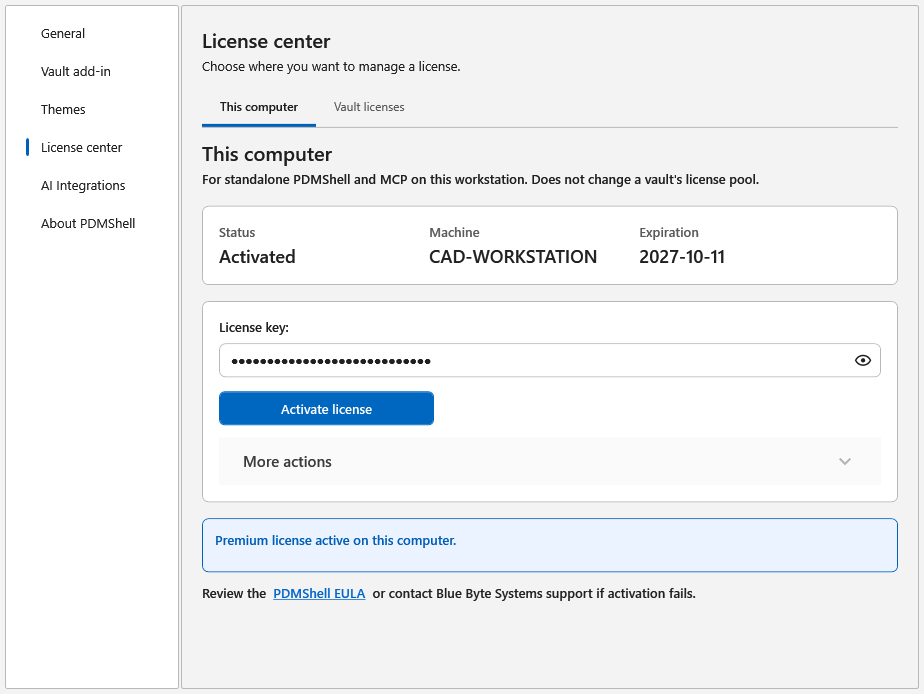
Enter a key and choose Activate license. The status area shows the result; wait for the operation to finish before closing Settings.
Expand More actions only when needed:
| Action | Effect |
|---|---|
| Deactivate this computer | Contacts the license server to release this computer's activation. |
| Remove saved key… | Removes the locally saved key after confirmation; does not deactivate it on the server. |
| Offline activation… | Opens request/response tools for a disconnected computer. |
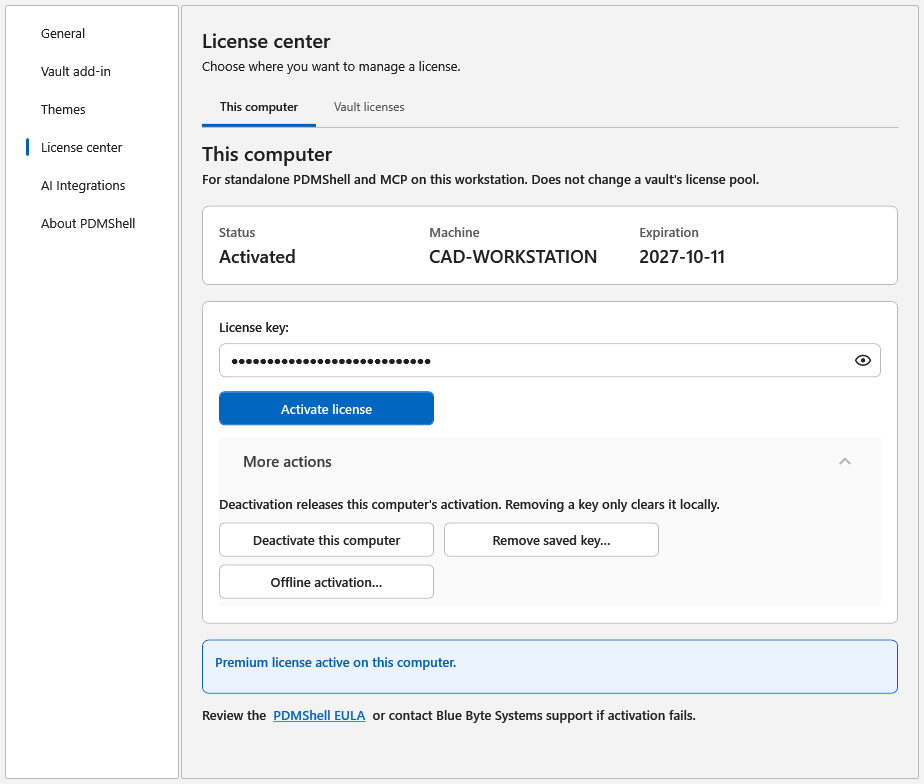
With updated perpetual validation, the computer license summary shows the separately verified maintenance date and whether the current release is covered. The vault manager's Expires column is the license lifetime, which may be 2099, not the maintenance end date. See activation and perpetual maintenance.
License center: Vault licenses
Select License center > Vault licenses, choose a vault, then Manage licenses. Refresh vaults refreshes the local vault list.
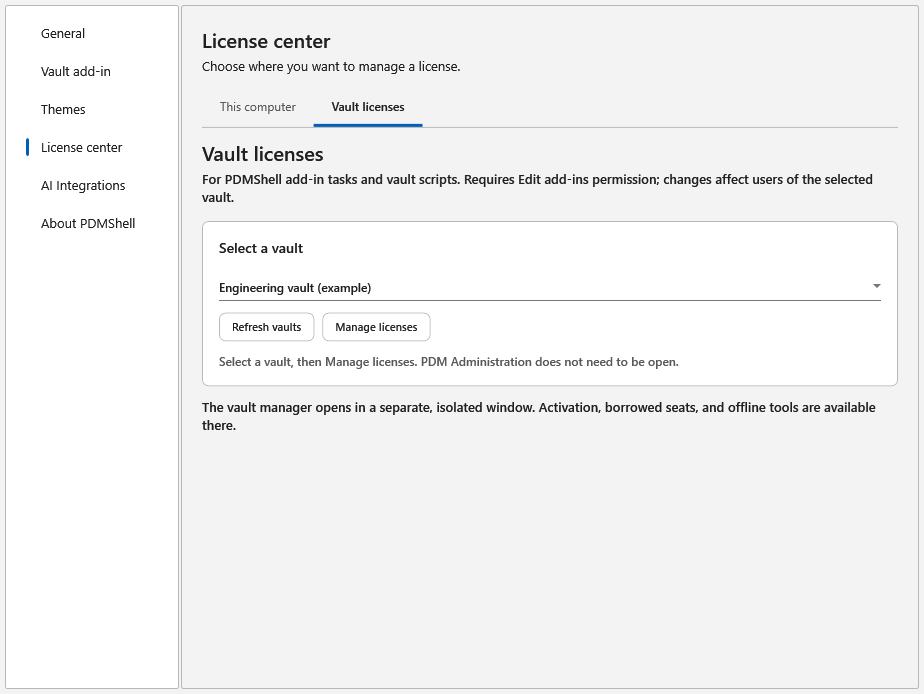
Sign in with Edit add-ins permission. The vault manager opens in a separate, isolated window. Opening it does not activate a license. It manages keys, license source, borrowed seats, and offline requests for that vault.
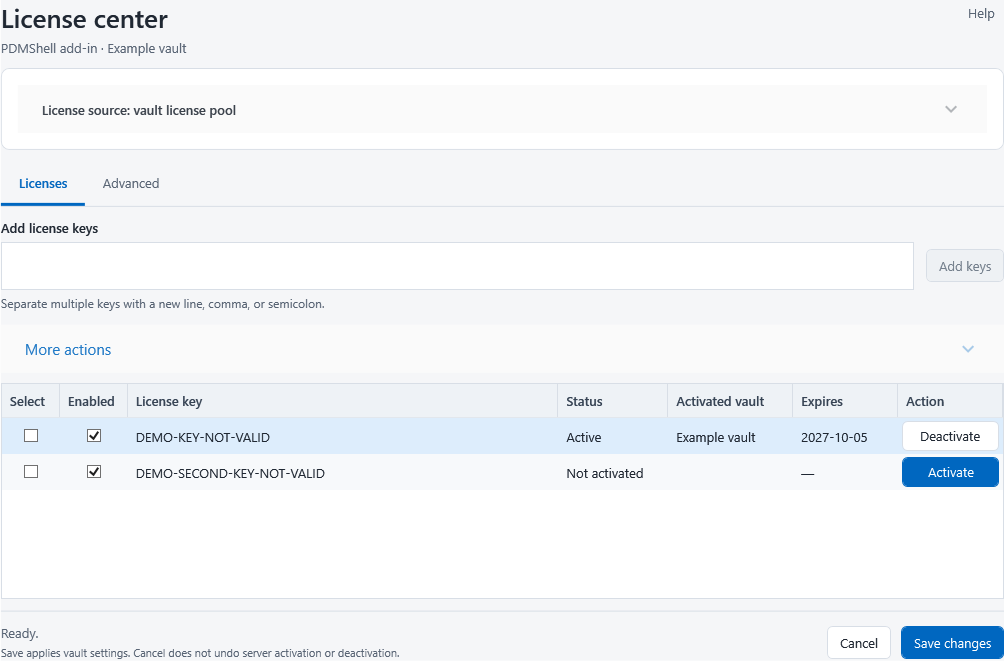
Use row actions for individual licenses; expand More actions for bulk actions. Advanced contains expandable Borrowed seats and Offline activation sections. See manage vault add-in licenses before changing pool settings.
Warning
Computer activation and vault activation are different scopes. In the vault manager, activation/deactivation and force-release operations take effect immediately; Cancel does not undo them. Save changes persists the vault configuration.