License Activation
Use Settings > License center > This computer in standalone PDMShell to activate, deactivate, or remove the license stored on this computer.
Note
The License center layout shown here is available in 4.1.0. Earlier builds call this page License. See Settings and License center for both licensing scopes. Screenshots use synthetic status data and a demonstration key.
This workflow activates a license for one machine. If you want a pooled license for PDMShell add-in users, manage and activate that license from Manage PDMShell add-in licenses instead.
Note
Regular activation requires an internet connection. If the computer is air-gapped or cannot reach the license server, use Offline Activation.
Open License Settings
- Open PDMShell.
- Select
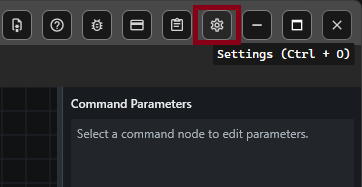
Settingson the toolbar or pressCtrl + O. - Select License center > This computer.
Activate A License
- Enter your PDMShell license key.
- Select Activate license.
- Wait for PDMShell to verify the license.
When activation succeeds, the status changes to Activated and the expiration date is shown on the License page.
With updated perpetual validation, license expiry and maintenance end are separate. PDMShell asks the maintenance service whether its shared release version is covered before requesting activation. A lifetime expiry in 2099 does not authorize newer releases after maintenance lapses. See Perpetual licenses and maintenance.
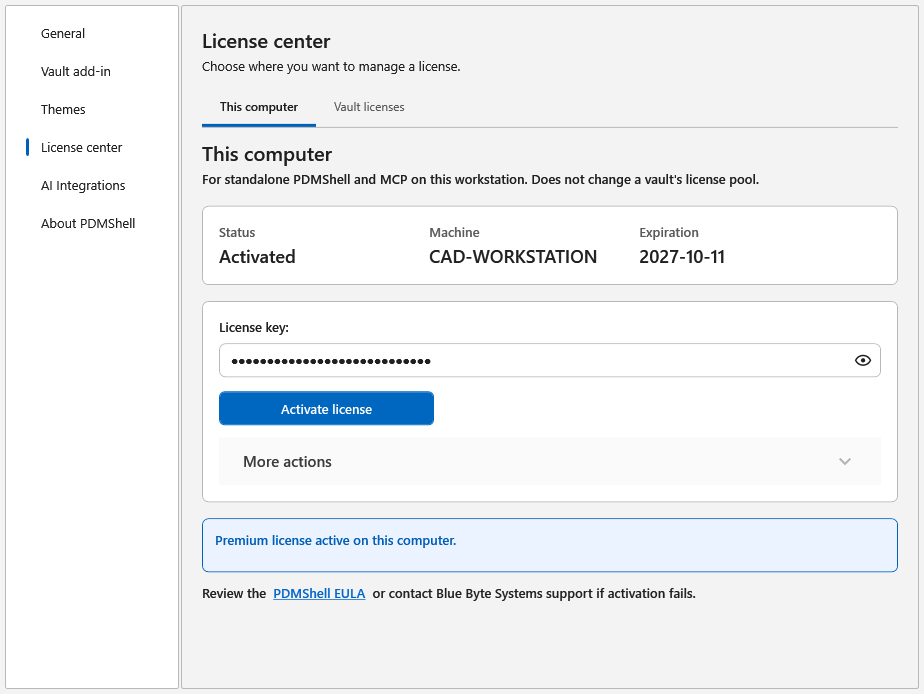
License key fields are masked by default and include an eye button for temporary show/hide.
Expand More actions > Offline activation… when the computer cannot reach the license server.
Deactivate A License
Use deactivation before moving a license to another computer.
- Open
Settings. - Select License center > This computer.
- Expand More actions and select Deactivate this computer.
PDMShell contacts the license server and releases the license from the current computer.
Delete A License From This Computer
Use More actions > Remove saved key… only when you need to remove the saved license information from the current Windows user profile. Older builds label this action Delete From Machine.
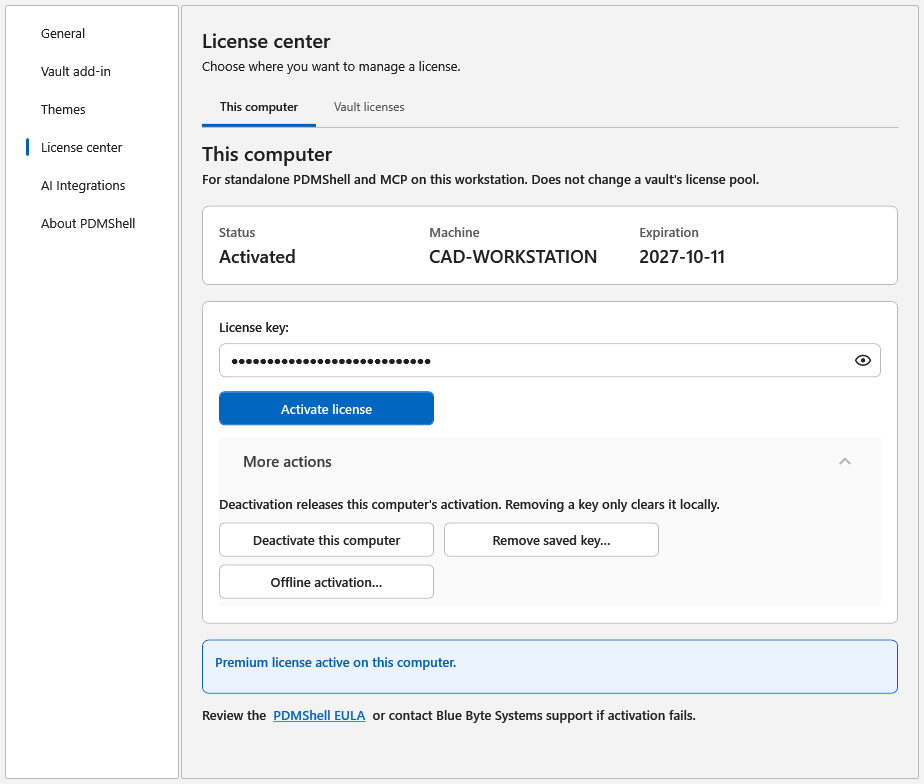
This does not contact the license server. If you plan to move the license to another computer, deactivate the license first.
In 4.0.86 and newer, the confirmation uses explicit Cancel and Remove key actions with readable light/dark colors. Cancel or closing the dialog leaves the key unchanged. Removing the local key does not deactivate it on the server and does not change vault licenses.
Troubleshooting
- Make sure the computer has internet access.
- Confirm that the license key was entered correctly.
- If the license is already active on another computer, deactivate it from that computer first.
- If activation still fails, contact Blue Byte Systems support and include the message shown on the License page.