
Use PDMShell with Claude Desktop
Looking for Claude inside the PDMShell chat panel instead? See Connect Claude with an API key. It can read the same command catalog and run approved commands in your selected standalone session, without requiring Claude Desktop, a second vault session, or a public MCP endpoint.
PDMShell includes a local MCP server that lets Claude Desktop discover PDMShell commands, inspect command parameters, explain search syntax, and run approved operations through your local SOLIDWORKS PDM environment.
The MCP server is installed with PDMShell and uses the version-matched Velopack-installed executable:
%LOCALAPPDATA%\Blue Byte Systems\PDMShell\current\MCP\pdmcli.mcp.exe
Important
The standalone installer bundles matching application, MCP and add-in files. Updating the standalone application does not deploy the add-in into a vault: an administrator must explicitly install/update the vault add-in. This guide is updated through 4.0.91.
Get started
- Install or update PDMShell.
- Install and open Claude Desktop at least once.
- Open PDMShell's
Settings>AI Integrations. - Under
Claude Desktop, clickConnect / Reset Claude. - Fully quit and reopen Claude Desktop.
- Ask Claude: What version of PDMShell is installed?
Claude should use the pdmshell_version tool and show matching PDMShell and MCP server versions.
Things you can ask Claude
Try prompts like these:
Show me the PDMShell commands that are available.
Explain every parameter for the PDMShell search command.
Show the PDM vault views available on this computer.
Build a search for checked-out SOLIDWORKS part files where the Description variable contains "bracket".
Log in to the Engineering vault, then show me the files in the current folder.
Claude can look up command syntax and parameter details before it creates a command. It can also explain PDMShell search fields, variable expressions, operators, sorting, grouping, duplicate handling, and escaping.
Connect to a vault
Claude can inspect PDMShell without logging in, but it must log in before reading or changing vault content.
You can simply ask:
Show my available PDM vaults and help me log in to one.
After login, the connection keeps the same PDMShell session. Claude can continue working with the selected vault and current folder without starting over for every command.
Long-running commands
PDMShell reports progress while longer commands run. Progress messages can identify the current operation or file as PDMShell processes it.
You can ask Claude to cancel an active command. PDMShell forwards that request to the running operation and stops at the next safe cancellation point. Some SOLIDWORKS or PDM API calls must finish before cancellation can take effect.
Command discovery and large results
PDMShell 4.0.62 expands MCP command details so Claude can see more examples, parameter types, constraints, and CSV guidance before it runs a command.
- Shared-search commands that support CSV query input document the
<Path.csv>format. runswmacro -listis described as a path parameter, not a Boolean switch.pdmshell_discover_valueshelps discover supported vault-specific values.pdmshell_read_resultreads large command results by page. Stored results are temporary and bounded, and truncation is reported explicitly.- Passwords are redacted from command output and errors.
- Commands without active implementations, such as
toolbox,rebuild, andpreview, are shown as unavailable through MCP.
Your PDMShell license
Claude Desktop uses the PDMShell machine license already installed on your computer. There is no separate MCP license, no separate API key for the local MCP connection, and no second activation step.
If no Premium license is installed, PDMShell continues with its normal Free-version limits. You can ask Claude to show the current license status at any time.
Learn more about machine licenses or compare Free and Premium.
Review commands before running them
Claude can run PDMShell commands that modify PDM files and data. Before approving a large, destructive, or unfamiliar operation, ask Claude to:
- Explain the command.
- Show the complete command and all parameters.
- Describe which files or folders it may affect.
- Wait for your approval before running it.
For extra safety, begin with a search or listing command so you can review the affected items first.
Claude Desktop setup
You do not normally need to configure the Claude Desktop connection manually. Use PDMShell's settings page to create or repair the connection.
Open PDMShell, then go to Settings > AI Integrations > Claude Desktop.
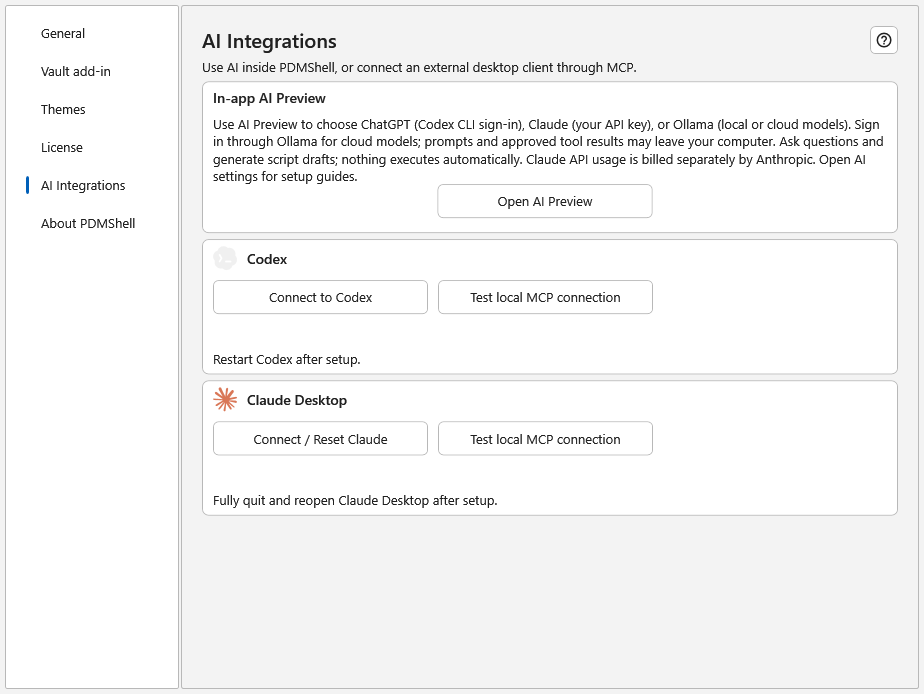
| Action | What it does |
|---|---|
Connect / Reset Claude |
Creates or repairs PDMShell's MCP configuration for Claude Desktop. |
Test local MCP connection |
Checks the local MCP server version and command discovery without logging into a vault or executing PDM commands. |
A successful local test confirms that the MCP server responds. It does not confirm that Claude Desktop has loaded the connection.
Follow the restart instruction shown on the settings page after setup.
Connect / Reset Claude behavior
Connect / Reset Claude:
- Uses only the Velopack-installed PDMShell MCP executable.
- Repairs the
pdmshellserver entry and removes the obsoletepdmclientry. - Preserves unrelated Claude settings, other MCP servers, and Codex configuration.
- Creates a uniquely named backup before changing an existing configuration.
- Makes no changes on repeated resets when the configuration is already correct.
- Refuses malformed, read-only, or concurrently locked configuration files.
Reset does not reset Claude itself, terminate Claude Desktop, or stop running commands.
Command-line switches
These switches are available for the installed pdmcli.mcp.exe:
--repair-claude
--test-claude-connection
Existing installer switches remain supported:
--configure-claude
--unconfigure-claude
Troubleshooting Claude setup
- Claude configuration not found: Install and open Claude Desktop once, then retry.
- MCP server missing: Install or repair the Velopack version of PDMShell.
- Invalid or read-only configuration: Correct the reported issue. Reset leaves the configuration unchanged.
- Still disconnected: Fully quit and reopen Claude Desktop, then inspect its connection error.
Manual Claude configuration
Claude Desktop commonly stores its configuration file in one of these locations:
- Standard Claude Desktop installation:
%APPDATA%\Claude\claude_desktop_config.json - Microsoft Store installation:
%LOCALAPPDATA%\Packages\Claude_*\LocalCache\Roaming\Claude\claude_desktop_config.json
If pdmshell is missing from Claude Desktop, use Connect / Reset Claude, fully quit Claude Desktop, and reopen it.
If you need to check the file manually, a pdmshell entry should look like this:
{
  "mcpServers": {
    "pdmshell": {
      "command": "C:\\Users\\YourName\\AppData\\Local\\Blue Byte Systems\\PDMShell\\current\\MCP\\pdmcli.mcp.exe",
      "args": []
    }
  }
}
Replace YourName with your Windows user-folder name. Keep the doubled backslashes because Claude Desktop's configuration uses JSON syntax.
Available tools
You normally do not need to call these tools by name. Claude chooses the appropriate tool for your request.
| Tool | What it does |
|---|---|
pdmshell_version |
Shows the installed PDMShell and MCP server versions. |
pdmshell_help |
Returns documentation, licensing and support links. |
pdmshell_license_status |
Shows the local PDMShell license status without starting a trial. |
pdmshell_list_vaults |
Lists PDM vault views available on this computer. |
pdmshell_list_commands |
Lists available PDMShell commands and executable status. |
pdmshell_describe_command |
Explains a command and all its parameters. |
pdmshell_describe_search |
Explains PDMShell searches and provides examples. |
pdmshell_describe_expressions |
Returns placeholders, 35 functions, aliases, examples, context requirements and side-effect warnings. |
pdmshell_execute |
Runs one PDMShell command in the current session. |
pdmshell_discover_values |
Discovers supported vault-specific values. |
pdmshell_read_result |
Reads paginated large command results. |
Expression and script discovery
From 4.0.90, ask the assistant to read pdmshell_describe_expressions before drafting scripts. It covers file/folder/user/date placeholders, data-card and global variables, strings, regex, arithmetic, CSV lookup, checkout status, revision schemes/components, serial numbers and input. The embedded AI uses the same reference.
For example, ask: “Read the expression reference, then draft a script using the actual selected files, an uppercase file label and the current revision. Do not run it.”
Discovery is metadata-only: it does not evaluate examples, access the vault or lookup files, show input dialogs, consume serial numbers or start an execution trial. Execution still requires the applicable approval, license and vault permissions.
For a multiline script, save it on the MCP host and use runscript -source with the appropriate file/items/search context. Do not assume an external MCP session inherits the standalone editor's selected file. Read the placeholder/function reference for context restrictions and side-effect warnings.
MCP processes during updates
An AI client can keep pdmcli.mcp.exe running or relaunch it after it closes. If it appears in the updater's blocker list, close or disconnect the owning client, then Recheck and Retry. See update recovery.
For Codex setup, see Use PDMShell with Codex. Continue with Advanced Search, the Command Reference, or the PDMShell release notes.