Connect Claude to PDMShell with an API key
PDMShell AI Preview supports ChatGPT, Claude and Ollama inside the standalone application, including when editing vault scripts. The lightweight PDM add-in no longer hosts an editor or AI chat. PDMShell remembers each provider's selected model and can reconnect Claude from a protected saved key. This article covers the Claude API-key option. You do not need Claude Desktop, Claude Code, or an external MCP connection for this option.
Important
This guide applies to builds that include Claude · API key in the AI setup provider list. If your installed version does not show that option, install a release containing this feature before following the connection steps.
Before you start
You need internet access and a Claude Console account with permission to create an API key. API usage has its own billing; a Claude chat subscription or PDMShell license does not pay for these requests. Review billing and spending limits in the Console before sending messages. See Anthropic's API billing guide.
Create your API key
- Open the Claude Console and sign in or create an account.
- Open Settings → API keys and select Create key.
- Name the key something recognizable, such as PDMShell on my workstation. Choose an appropriate expiration and scope it to a single workspace that has access to the models you intend to use. PDMShell's current integration does not select a workspace for organization-wide keys.
- Copy the new key into a password manager or directly into the PDMShell setup dialog. The Console only reveals the full value when it is created; create a replacement if you lose it.
If you cannot create a key, ask your organization administrator for appropriate access. For the current Console screens and key options, see Anthropic's API-key instructions.
Warning
Treat the key like a password. Never paste it into the AI chat, a PDMShell script, a support ticket, or a screenshot. Only paste it into the masked API key field in setup.
Connect in PDMShell
- Open AI Preview from the standalone toolbar.
- Select the settings gear at the bottom of the chat, or select Sign in if no provider is connected.
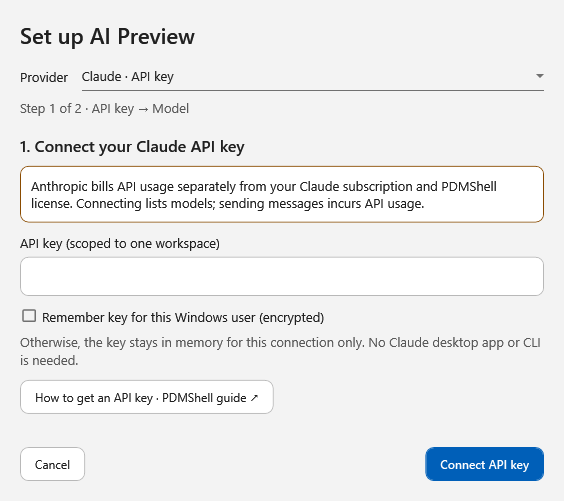
- In Provider, choose Claude · API key.
- Paste your key into API key. It remains masked.
- Optionally select Remember key for this Windows user (encrypted). Leave this off to keep the key only in memory for the current connection.
- Select Connect API key. PDMShell checks the key by requesting the available model list; it does not send a chat prompt during setup.
- Choose a model from the returned list, considering your organization's access and costs. PDMShell remembers the selected model for the Claude connection.
- Select Done. The chat identifies Claude. Open the bottom information icon for privacy and usage notes identifying Anthropic as the recipient.
You can reopen this article using How to get an API key · PDMShell guide in the setup dialog.
Chat, share context, and switch providers
Type a message and select the send arrow, or press Enter. Use Shift+Enter for a new line. Select Stop to cancel a pending response; cancelling does not guarantee that Anthropic will charge nothing for processing already performed.
The prompt and conversation context are sent directly to Anthropic. The active script is only included when you select Include script for that message. That option resets after a successful response. Previously shared content remains part of the current provider conversation until you start a new chat.
By default, AI Preview only drafts and explains scripts. Claude can optionally use PDMShell's embedded session tools as described below. Expand Script draft to inspect a completed draft. Use draft… asks for confirmation before replacing the current editor contents; inserting a draft never runs it. Run executes the draft through the selected session's normal runner without replacing the current editor script. Save existing work first and review generated commands before execution.
To switch to ChatGPT or Ollama, use the compact provider-logo menu beside the settings gear, or reopen setup from the gear. Switching saved providers starts a fresh chat; the previous provider's conversation and chat-scoped approvals are not forwarded. Cancelling setup leaves your existing connection unchanged. Embedded ChatGPT supports the same optional catalog and active-session tools, with approved results sent to OpenAI instead of Anthropic.
Optional: discover commands and run them in your session
- In Claude AI settings, go to Choose your model.
- Select Use command catalog and run in the selected session, then Done. This is opt-in for the connection, not a permanent permission to execute commands.
- Select the PDMShell tab you want to work in, then ask Claude for the task. Claude can read the installed command catalog, inspect a command's syntax and parameters, check session state, and request command execution. The embedded tool bridge runs inside PDMShell; it does not start a separate MCP process or require a public endpoint, Claude Desktop, or Claude Code.
- For every tool call, inspect the target session and exact command. PDMShell 4.0.78 shows executable commands directly instead of JSON-wrapped arguments. Allow once & share result approves that one local call and sending its result to Anthropic. You can remember read-only approval, or approve one exact command for the current chat and session. Other commands still require approval. Deny, Escape, or closing the dialog executes nothing for that call.
- Commands execute through the selected tab's normal console runner, preserving its vault login, current folder, and session variables. Output and command history appear in that session; Claude receives the actual result or error. Your unsaved script and unfinished console input are preserved.
- Review the single updating tool-status entry and Claude's final explanation. API charges apply to follow-up requests containing tool results too.
There is no second vault login for embedded Claude. If your selected tab is already connected, Claude uses that session. If it is disconnected, log in normally or approve login -vaultName "YourVault" -auto with the correct vault name. Never put vault passwords, license keys, or API keys in chat or tool arguments. Existing vault permissions, standalone command checks, and MCP Premium/one-time trial checks still apply; this option does not bypass licensing.
Approved results can include vault names, file paths, usernames, metadata, and command output. These are sent to Anthropic and remain in that conversation's context. Only approve calls whose actions and data sharing are allowed by your organization.
Clear text clears the displayed transcript only. New chat, changing model or tool access, disconnecting, and switching providers clear AI context and chat-scoped approvals but do not close your tab or log it out. Changing the selected tab starts fresh AI context on your next message. A tab change while a tool is awaiting execution rejects that call instead of silently running in another session; busy tabs are also rejected.
PDMShell 4.0.78 handles Claude thinking and redacted-thinking response blocks without exposing private reasoning. Tool-call validation and approval checks still apply.
Stop requests cooperative cancellation through the session runner; some PDM calls must finish before cancellation can take effect. Stopping, denying a later call, or closing chat does not undo earlier changes. Check the session console and vault before retrying. Calls are bounded per message and failures are not automatically retried.
Remember, replace, or forget a key
- Remembering a key is optional. When selected and setup is completed with Done, PDMShell encrypts the key using Windows Data Protection for the current Windows user and stores only the encrypted value in that user's registry. It is not stored in scripts or the documentation site.
- Without remembering, reconnecting after a restart, cancellation, connection failure, or provider switch may require entering the key again. With a remembered key, PDMShell can reconnect Claude and restore the previously selected model for this Windows user.
- To replace a connected key, open AI settings, use Back from the model step to return to the key page, enter the replacement, reconnect, select a model, and choose Done.
- Disconnect / forget key removes PDMShell's saved copy and disconnects this provider. It does not revoke the key at Anthropic. Revoke or rotate a compromised key in the Claude Console as well.
Local encryption protects the saved value at rest; it does not protect against malicious software running as your Windows user. Follow your organization's rules for keys and confidential vault data.
Troubleshooting
| Message or symptom | What to check |
|---|---|
| API key rejected | Copy a valid, unexpired key from the Console. Do not enter your account password. |
| Access denied or no models | Check key permissions, workspace scope, and model access with your administrator. |
| Request rejected | Check API credits, model availability, workspace scope, and message length. |
| Rate or usage limit reached | Review Console billing and limits; wait before retrying. PDMShell does not automatically retry billed requests. |
| Connection timeout | Check internet access, proxy configuration, and your organization's access to api.anthropic.com. |
| Response limit reached or incomplete response | Ask for a smaller script. Failed, truncated, and cancelled responses cannot become insertable drafts. |
| Saved key cannot be read | Enter the key again under the intended Windows user. A key protected for another Windows user cannot be restored here. |
| Session changed or busy | Select the intended tab, wait for its current operation, and send a new message. Approved commands are never silently redirected to another tab. |
| MCP license or vault login error | Check the existing MCP license/trial and the selected tab's vault login. Do not enter vault credentials into chat. |
| MCP timeout or interrupted operation | Inspect the vault and tool activity before retrying. Cancellation cannot roll back completed changes. |
For the separate external-client workflow, see Claude Desktop and the PDMShell MCP server.