Script inputs
Back to the function reference.
Input Function
Use $input("Title", "Message") when a script needs a value from the user at runtime. PDMShell shows a prompt with a text box and an OK button. The typed text becomes the evaluated value.
setvar -filePath "$localPath" -variableName Description -value "$input(\"Description\", \"Enter the new description\")"
Add a third argument when the prompt should start with a default value:
setvar -filePath "$localPath" -variableName Description -value "$input(\"Description\", \"Enter the new description\", \"Needs review\")"
You can also use the standard ${...} function form:
setvar -filePath "$localPath" -variableName Description -value "${input(\"Description\", \"Enter the new description\")}"
If the user closes the input prompt without clicking OK, the function returns an empty string. PDMShell warns before clearing the return value; users can suppress that warning with Do not show this again.
Important
$input(...) is evaluated every time the expression is processed. If you use it in a command that processes multiple files, PDMShell can prompt once per file.
Use $input(...) for interactive PDMShell sessions. Avoid it in unattended or headless automation because the script will wait for user input.
Read a folder card variable
Use ${folderVariable(folderPath, variableName)} to read a folder's data card without changing directories. Supply a complete folder path in the connected vault.
setglobal -name FolderTitle -value "${folderVariable(C:/RECONCRAFT/${global.ProjectNumber}, Title)}"
setvar -filePath "${global.ECPath}" -variableName "Title" -value "${global.FolderTitle}"
An existing empty value returns empty text. A missing folder, unknown variable, or access failure reports an error. Returned values are treated as text and are not evaluated as another expression.
Collect answers when a task launches
Configure prompts on the task's Task inputs page, then read answers with ${task.VariableName}. Answers are saved with that task instance and can be used on another task host. See Task inputs.
Lookup Function
Use ${lookup(csvPathOrPdmFileId, value)} when a script needs to translate one value into another from a two-column CSV file.
The first column is the lookup key. The second column is the returned value.
Code,Description
A100,Bracket
B200,Cover
setvar -filePath "$localPath" -variableName Description -value "${lookup(\"C:\Vault\lookup.csv\", $(Code.@))}"
If $(Code.@) evaluates to A100, the expression returns Bracket.
You can also combine literal text with a lookup result. This example reads Lookup.csv, finds key 4 in the first column, and inserts the matching second-column value into a message box:
msgbox -value "speaker_frame-${lookup(\"C:\SOLIDWORKSPDM\Assemblageddon\Lookup.csv\", 4)}" -icon "Information"
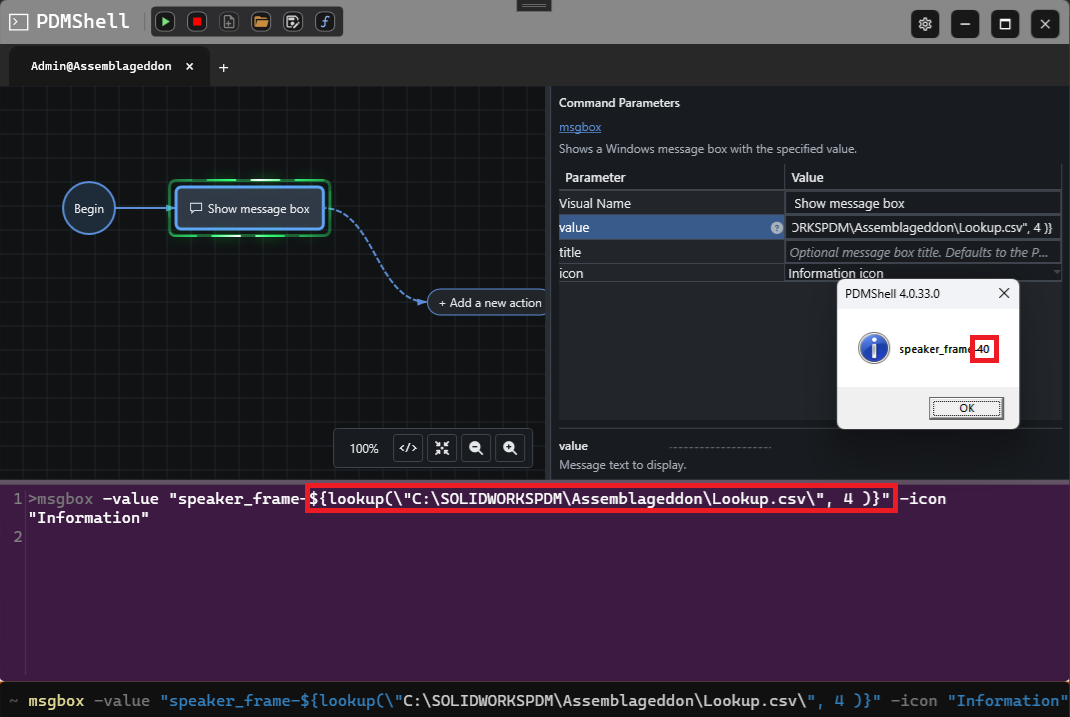
The CSV argument can be a local path, a path relative to the current vault folder, or the PDM file ID of a CSV file:
setvar -filePath "$localPath" -variableName Description -value "${lookup(12345, $(Code.@))}"
If the CSV file exists but the first-column value is not found, the function returns an empty string. If the CSV file path or PDM file ID cannot be resolved, the expression is left unchanged so the problem is visible in the output.
Serial Number Function
Use ${serialNumber("SerialNumberName")} when a command or script needs the next value from a SOLIDWORKS PDM serial number.
setvar -filePath "$localPath" -variableName Number -value "${serialNumber(\"PartNumber\")}"
Warning
${serialNumber("SerialNumberName")} allocates a real PDM serial number every time the expression is evaluated. Avoid testing this repeatedly against a production serial number. If the expression is used in a command that processes multiple files, one serial number is allocated for each evaluated item.