Create an ECO with a PDM task
This example creates one engineering change order (ECO) in a project's EC folder. The person launching the task enters the project number and change description. The script obtains an EC number, copies an XML template, fills its data card and checks it in.
Before you start
Use a test project first. Adjust these example names to match your vault:
| Setting | Example |
|---|---|
| Vault view | C:\RECONCRAFT |
| Project folder | C:\RECONCRAFT\60-104 |
| Template file | C:\RECONCRAFT\Templates\EC Template\EC_Template.xml |
| Serial number | ec serial number |
| XML card variables | ec_number, Ec_date, project number, Title, Description |
| Project folder card variable | Title |
The project folder must already exist. Configure the XML file's data card and variable mappings in PDM. The task user needs permission to read the template, obtain a serial number, create files/folders, edit variables and check in files.
Use the same vault view path on the task host, or change the paths in the script. Get the XML template locally on that host before testing.
1. Set up the task
Create a task named Create ECO in PDM Administration and select the PDMShell add-in. Choose its execution host on Execution Method.
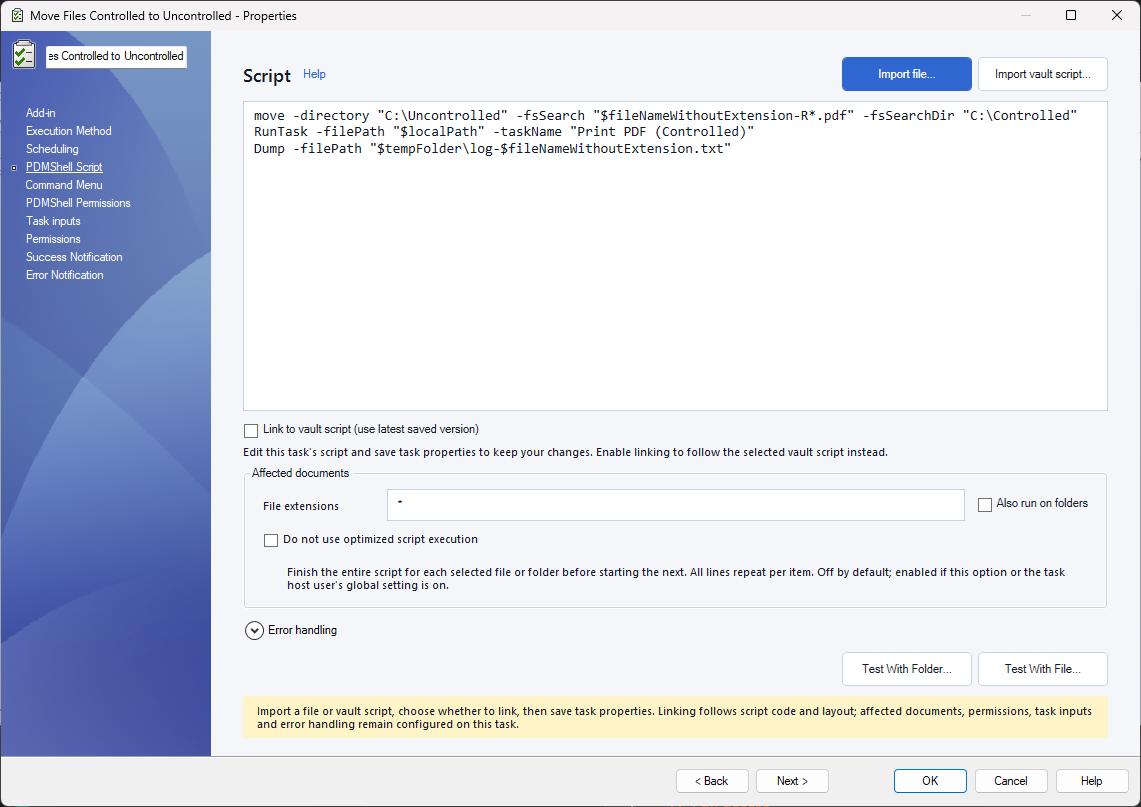
The screenshot shows another task; use the script below for Create ECO. Enable Also run on folders. Launch this example for one project folder at a time, not a selection of parts: each execution creates a new ECO and consumes a serial number.
Expand Error handling and enable Stop script after a non-ignored error. This prevents later creation steps from continuing after an earlier failure.
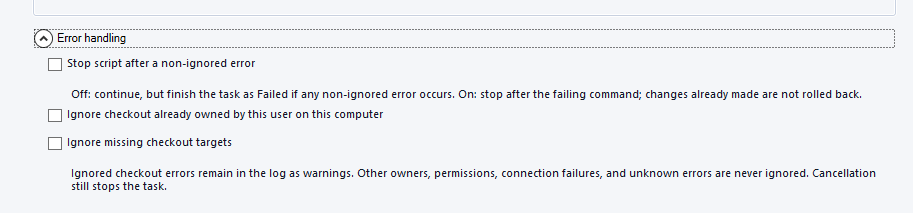
The screenshot has the options unchecked. For this example, check the first option and leave Ignore missing checkout targets off.
2. Add task-launch inputs
Open Task inputs and add these rows:
| Variable | Prompt | Default value | Required |
|---|---|---|---|
| ProjectNumber | Project number, for example 60-104 | Yes | |
| ECDescription | Describe the engineering change | Yes |
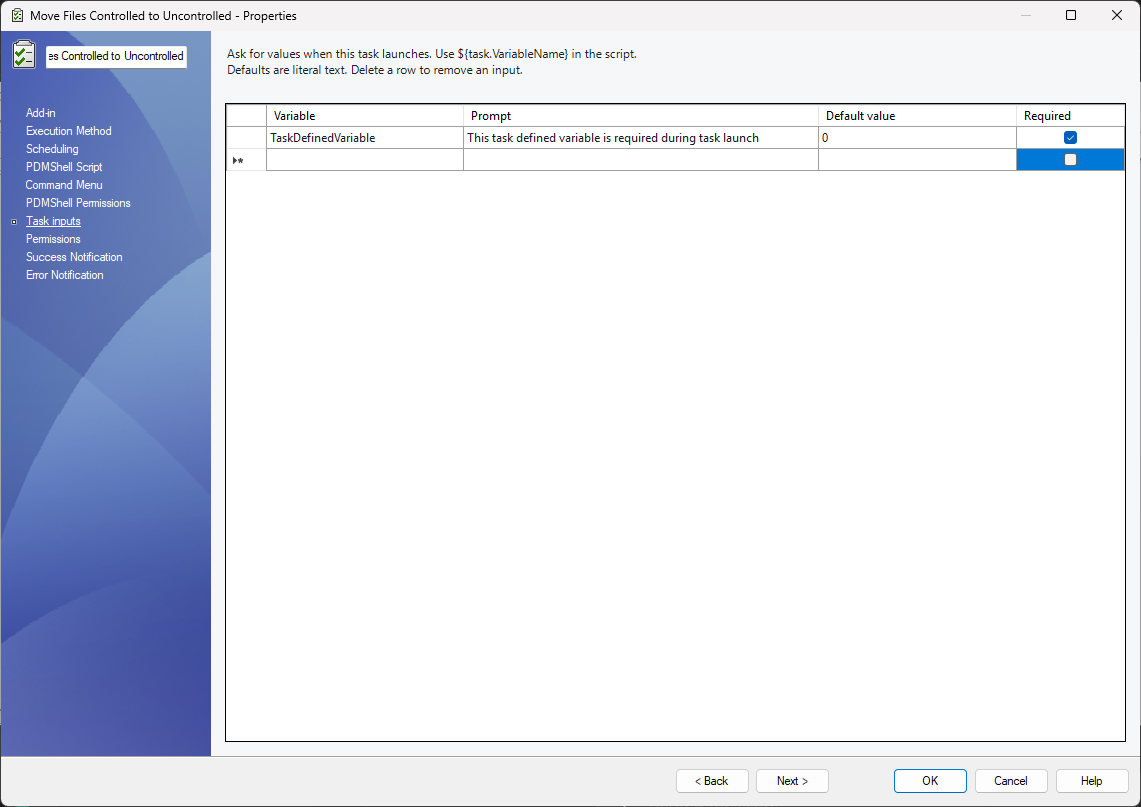
Replace the screenshot's sample TaskDefinedVariable row with the two rows above. The script reads ${task.ProjectNumber} and ${task.ECDescription}.
At launch, the dialog shows the task name and both prompts. The description accepts multiple lines with Enter. Continue submits the answers; Cancel cancels the launch. Do not enter a full path as the project number—use the name of the existing project folder.
3. Add the script
Paste this into PDMShell Script, then save task properties. It creates the EC subfolder if needed; an existing folder is reused.
# Resolve the existing project and read its folder card before allocating a number.
setglobal -name ProjectNumber -value "${task.ProjectNumber}"
setglobal -name ProjectPath -value "C:\RECONCRAFT\${global.ProjectNumber}"
cd -directory "${global.ProjectPath}"
setglobal -name FolderTitle -value "${folderVariable(C:/RECONCRAFT/${global.ProjectNumber}, Title)}"

# Create one EC file from the template.
mkdir -directory "${global.ProjectPath}\EC"
setglobal -name ECNumber -value "${serialNumber(ec serial number)}"
setglobal -name ECPath -value "${global.ProjectPath}\EC\${global.ECNumber}.xml"
copy -source "C:\RECONCRAFT\Templates\EC Template\EC_Template.xml" -directory "${global.ProjectPath}\EC" -name "${global.ECNumber}.xml"
checkout -filePath "${global.ECPath}"

# Fill the new file's data card.
setvar -filePath "${global.ECPath}" -variableName "ec_number" -value "${global.ECNumber}"
setvar -filePath "${global.ECPath}" -variableName "Ec_date" -value "$date"
setvar -filePath "${global.ECPath}" -variableName "project number" -value "${global.ProjectNumber}"
setvar -filePath "${global.ECPath}" -variableName "Title" -value "${global.FolderTitle}"
setvar -filePath "${global.ECPath}" -variableName "Description" -value "${task.ECDescription}"
checkin -filePath "${global.ECPath}" -comment "Created ECO ${global.ECNumber}" -Checkinoptions "EdmUnlock_Simple"
Title comes from the project folder's card, not the selected part or the XML template. Description comes from the launch dialog. $date supplies today's date on the task host. The returned serial number supplies both the filename and ec_number value.
All updates target the exact new XML path; no broad search is used to select an ECO. The XML template must support the listed PDM variables. Add -configNames to setvar if your card requires a specific configuration.
If you keep this script in the vault library, use Import vault script… and optionally enable Link to vault script (use latest saved version). Save task properties after configuring it.
4. Allow users to launch it
On Command Menu, set a descriptive label such as Create ECO and enable Show Command in File Explorer if users should launch it by right-clicking a project folder.
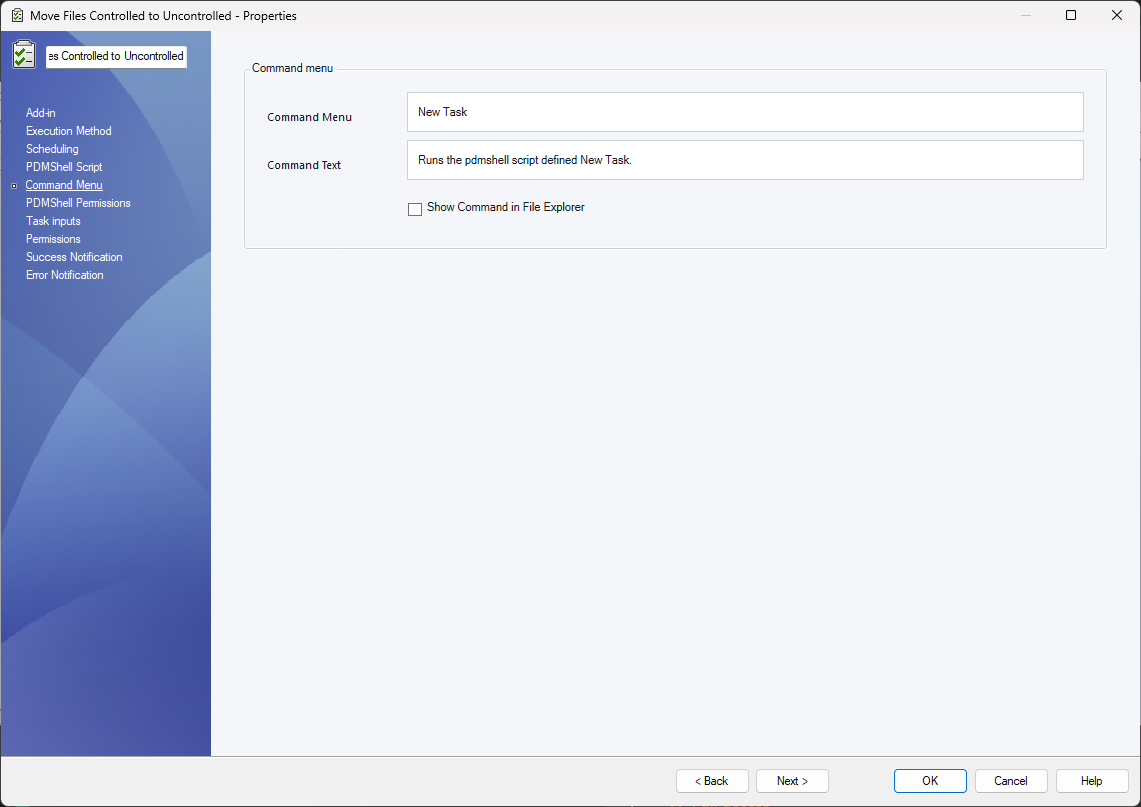
On PDMShell Permissions, permit the users or groups who should launch it. Configure PDM's standard task permissions as well. See task permissions.
5. Test a complete launch
- Save the task with OK.
- Launch it for one test project folder through PDM, so the task-input dialog is included.
- Enter the existing project number and a test change description, then choose Continue.
- Watch the Task List for Completed or Failed.
- Open the project's EC folder. Confirm that the new XML is checked in and its card contains the EC number, date, project number, project Title and your description.
The Script page's Test With Folder executes the script directly; use a normal PDM task launch to test collection of ${task...} answers.
A failed run may have consumed a serial number or created a partially populated file. Inspect the task log and that file before retrying. Stopping on error does not undo completed changes or return a serial number.
Optional next steps
Once creation works, you can extend a separate file-based task to export a drawing PDF, attach it to the exact ECO using pasteasreference, and apply your configured workflow transitions. Keep the ECO path explicit and use transition IDs from your vault.
If an existing PDM template already handles the entire creation process, use runtemplate instead of the serial-number/copy steps above. Do not run both creation methods for the same ECO. -silent confirms a template dialog; it does not fill template-card fields from task inputs.
Collect the files for an ECO
Keep export filenames unchanged and add revisions only to the ECO Description: Bracket.pdf Rev A uses the drawing revision; Bracket.step Rev B and Bracket.dxf Rev B use the first referenced model's PDM revision. The following block assumes the ECO is already created and checked out, with its XML path in ${global.ECPath}. Place it before the ECO's final check-in.
export -filePath "$localPath" -directory "$folderPath" -name "$fileNameWithoutExtension" -extensions "pdf" -overwrite -outputVariable PDFExports
setvar -filePath "${global.ECPath}" -variableName Description -value "$value\n${regexReplace(${global.PDFExports}, ([^\r\n]+), $1 Rev $revision)}" -stringformat None

export -filePath "$localPath" -directory "$folderPath" -name "$fileNameWithoutExtension" -extensions "step" -overwrite -outputVariable STEPExports
setvar -filePath "${global.ECPath}" -variableName Description -value "$value\n${regexReplace(${global.STEPExports}, ([^\r\n]+), $1 Rev ${referencedDocumentRevision()})}" -stringformat None

export -filePath "$localPath" -directory "$folderPath" -extensions "dxf" -flatPattern -overwrite -outputVariable DXFExports
setvar -filePath "${global.ECPath}" -variableName Description -value "$value\n${regexReplace(${global.DXFExports}, ([^\r\n]+), $1 Rev ${referencedDocumentRevision()})}" -stringformat None
Each export replaces its output variable with the filenames it successfully published. Ordinary parts produce no flat-pattern filename. Keep Stop script after a non-ignored error enabled so failed exports leave the ECO checked out instead of proceeding to its final transition. These examples use drawings of one model: the revision function uses the first reference, while STEP export rejects drawings with multiple models or configurations.
Transition two drawings
For a drawing-based ECO task, open Task Properties > PDMShell Script > Affected documents. Set File extensions to slddrw and enable Do not use optimized script execution. Under Error handling, enable Stop script after a non-ignored error if a failed export must stop the task before the ECO is checked in.
With two drawings in one task instance, PDMShell runs the whole script for the first drawing and then repeats it for the second. Allocate the EC serial number, capture the revision and folder values, and initialize the export list inside that script. Each drawing then gets its own ECO XML and export list. For example, a sheet-metal bracket at revision A can produce PDF, STEP and DXF files. A machined shaft at revision C produces its own PDF and STEP. The shaft's ECO lists only the shaft's files.
Task inputs belong to the task instance. Both ECOs receive the same ${task.Comments} when the drawings share a task. Launch separate tasks if each drawing needs a different comment. For an unattended transition, give required inputs a default or arrange for answers at launch.
Test with two sandbox drawings in one transition: confirm two distinct ECO numbers, the correct revision and filenames on each ECO, and a PDF reference pointing to the matching drawing's exported PDF. See the single-script export block.