Log into PDM and File Explorer
Connect PDMShell to a vault to run commands, or use Explorer login to open a logged-in vault window. You need a local vault view on the computer. Use its vault name, such as sandbox, rather than its folder path.
Choose how to log in
| What you want to do | Option | What happens |
|---|---|---|
| Use the current PDM client login | -auto |
Connects PDMShell using the existing client session. PDM may display a login dialog if no user is logged in. |
| Supply a username and password | No mode option | Connects PDMShell with the supplied credentials. |
| Log into the PDM client without a login dialog | -win |
Uses the supplied credentials to log into the PDM client and connects PDMShell. It does not mean “retrieve my Windows password.” |
| Connect using the external-application login | -external |
Connects PDMShell using PDM's external-application login and license handling. |
| Log into the vault in File Explorer | -explorer |
Uses the vault's Log In menu action and opens a new Explorer window. PDMShell's own connection stays unchanged. |
Choose one mode per command. Use -credentials instead of -username and -password with any credential-based mode; it cannot be combined with -auto.
Connect to the current PDM session
login -auto -vaultName "sandbox"
This is convenient when you already work in the vault through Explorer. If a login dialog appears, complete it before continuing.
To supply credentials directly:
login -vaultName "sandbox" -username "your-user" -password "your-password"
Use -password "" for a genuinely blank password. For repeatable scripts, save a Generic Credential instead of putting the password in the script.
Create a credential in Windows Credential Manager
Important
Use “Add a generic credential,” not “Add a Windows credential.” Both links appear on the Windows Credentials tab. PDMShell reads entries from the Generic Credentials section only.
- Open Credential Manager from the Windows Start menu.
- Select Windows Credentials.
- Scroll down to Generic Credentials and select Add a generic credential.
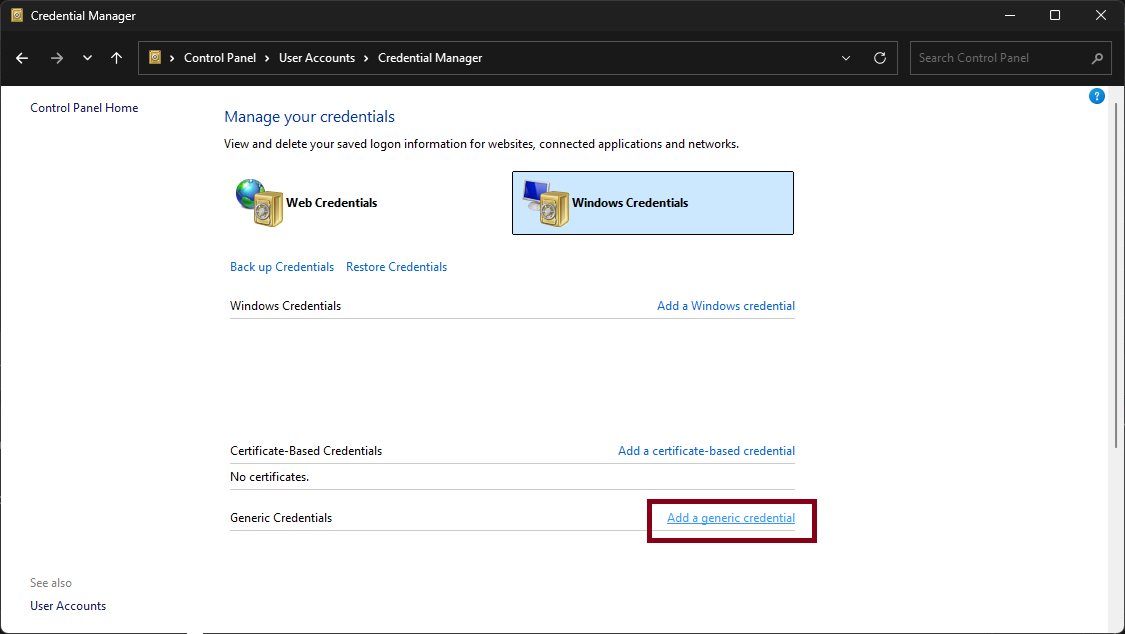
- In Internet or network address, enter a name such as
pdmshell. This is a name for the saved credential, not a website or vault path. - Enter your PDM username and PDM password.
- Click OK. Confirm that the entry appears under Generic Credentials.
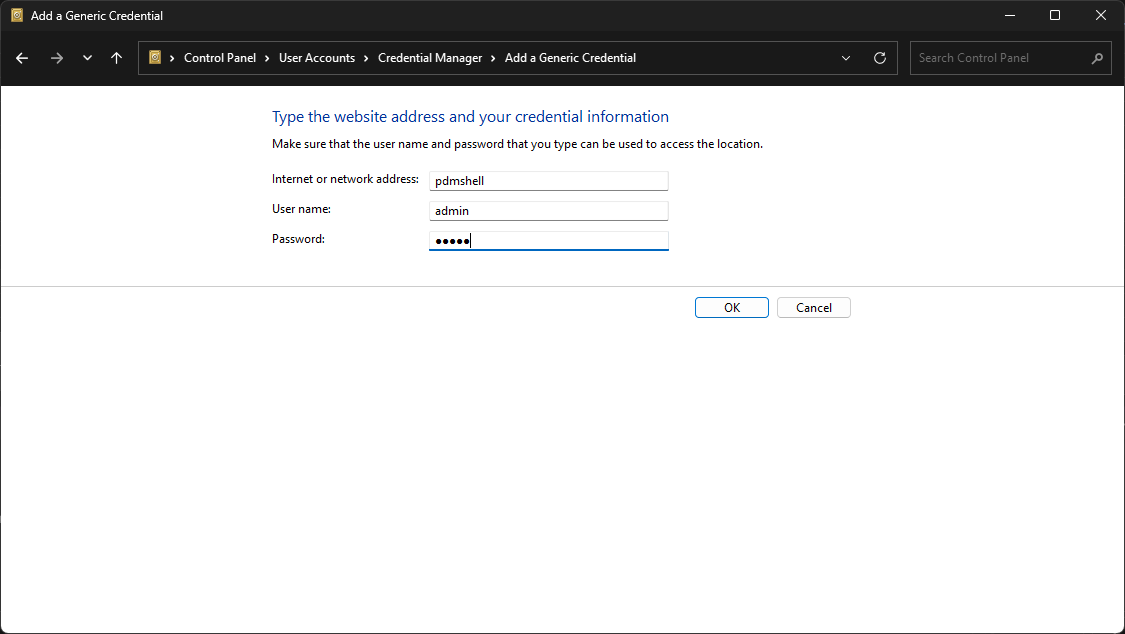
The screenshot uses admin as an example; enter the PDM account you intend to use. You can save separate entries such as PDMShell/sandbox and PDMShell/production for different vaults.
Use the saved username and password
Pass the saved entry's name exactly:
login -vaultName "sandbox" -credentials "pdmshell"
PDMShell reads both fields from Credential Manager for the Windows account running PDMShell. The script contains the entry name, not its password. If you run a scheduled task as another Windows account, create the Generic Credential under that account too.
The same entry can be used with these login modes:
login -win -vaultName "sandbox" -credentials "pdmshell"
login -external -vaultName "sandbox" -credentials "pdmshell"
These are alternatives; you do not need to run them in sequence. Do not add -username, -password, or -auto to a command using -credentials.
To change the saved password, expand the entry in Credential Manager and choose Edit. The script can keep using the same entry name. This feature does not retrieve your Windows sign-in password or PDM's own saved automatic-login settings.
Log into File Explorer
login -explorer -vaultName "sandbox" -credentials "pdmshell"
PDMShell finds the local vault root automatically, invokes its Log In command, fills the username and password, and submits the dialog. After verifying the PDM client login, it opens the vault in a new Explorer window.
Run this in the signed-in Windows user's interactive desktop session. The current automation supports the English PDM login menu and dialog.
- If the requested user is already logged in, PDMShell opens another vault window without submitting the credentials again.
- If another user is logged in, the command reports an error. Log out of that vault before switching users.
- Closing PDMShell does not log the PDM Explorer client out.
-explorerleaves PDMShell's own vault connection unchanged.
If your script also needs to run PDM commands, connect PDMShell afterward:
login -explorer -vaultName "sandbox" -credentials "pdmshell"
login -auto -vaultName "sandbox"
cd -directory "$vaultRootFolder"
For launching scripts at Windows sign-in, see Run pdmcli.exe from the command line. Explorer login requires an interactive desktop; headless mode does not remove that requirement.
Troubleshooting
| Message or behavior | What to check |
|---|---|
| Generic Credential was not found | Check the entry name, the Windows account running PDMShell, and that the entry is under Generic Credentials. If you created a Windows credential instead, add a Generic Credential; you do not need to delete the other entry. |
| Username or password is incorrect | Edit the saved entry and verify the PDM credentials. Explorer login reports PDM's error, dismisses it, and closes that login attempt without retrying. |
| Another user is already logged in | Log out of the vault in Explorer before switching accounts. |
| No local vault view was found | Create the local PDM vault view and check the vault name. |
| Login times out | Check for an unresponsive PDM client, server connectivity, and the supported English login dialog. The command times out after 60 seconds. |
Cancel closes the Explorer login attempt's dialogs and reports cancellation. Login failures follow the script's error-handling settings; they do not count as successful logins.
For all parameter names and aliases, see the login command reference.