Odoo connector
Use PDMShell to synchronize products, properties, thumbnails, and bills of materials between SOLIDWORKS PDM and Odoo. Preview changes before applying them. The connector requires Odoo 19 or later with access to the JSON-2 API.
Connect your vault
Log in to your PDM vault, then open Settings > Connectors > Configure Odoo, or run:
odoo -configure
Connection
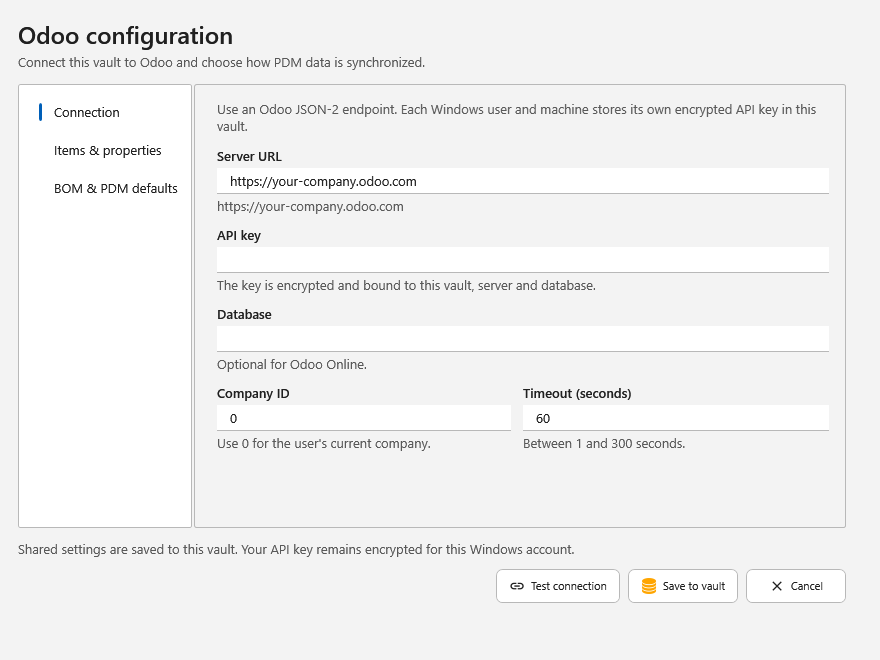
Enter your Odoo server URL and API key. Add a database name if your connection requires it. Choose Test connection, then Save to vault.
Connection settings are shared with the vault. Each Windows user and computer needs its own API key, including accounts used for unattended tasks.
Items and properties
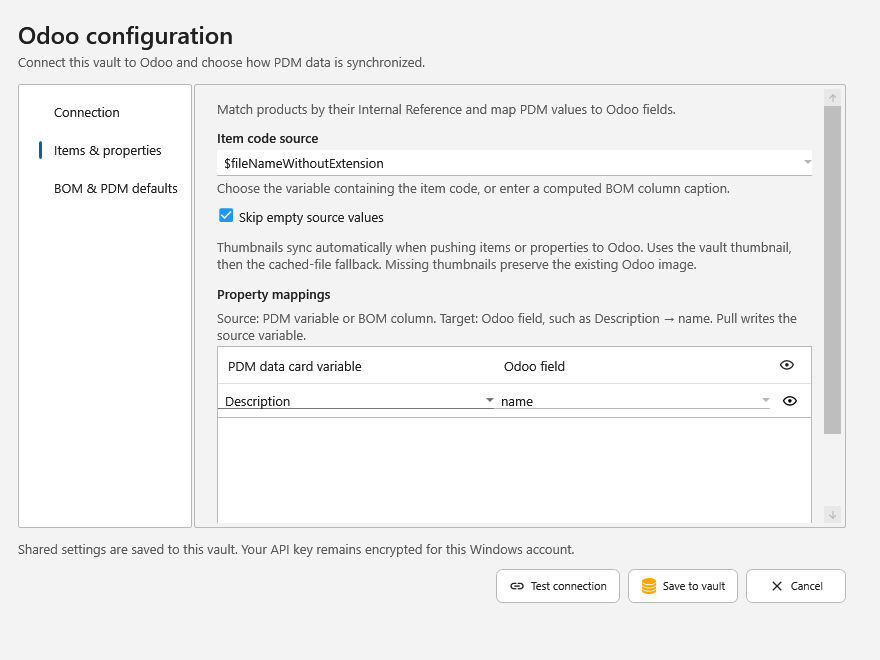
Choose the source for the item code. PDMShell matches it to the product's Internal Reference in Odoo. You can use a PDM variable, a BOM column, or a placeholder such as $fileNameWithoutExtension.
Map each PDM property to its Odoo field. The field picker groups fields by Products, BOMs, and BOM lines; unsupported fields are disabled.
- Skip empty source values keeps the destination value when the source is blank.
- The eye beside a mapping shows or hides its preview column. Hidden fields still synchronize.
- Choose Save to vault to keep your settings.
Use readable relation names shows names in the preview and writes them to PDM when pulling categories, taxes, tags, and custom relation fields. It is enabled by default. Clear it to use #ID values. Push accepts exact names or #ID values in either mode.
Custom many-to-one fields, such as a Manufacturer field created in Odoo Studio, can be mapped to a PDM variable. Enter an existing record's display name or #ID.
Let Odoo assign new item numbers
Let Odoo number new products and save those numbers back to their PDM data cards. Odoo must already be set up to assign an Internal Reference to new products.
- In Items & properties, enable Use Odoo-generated references.
- Choose an editable PDM data card variable for the item code, such as
OdooReference. - Get the latest files, check them out, and choose the PDM configuration you want to sync.
- Preview with item or all, then select Sync to Odoo.
Blank item codes receive the new Odoo number. Existing item codes stay unchanged.
BOM defaults
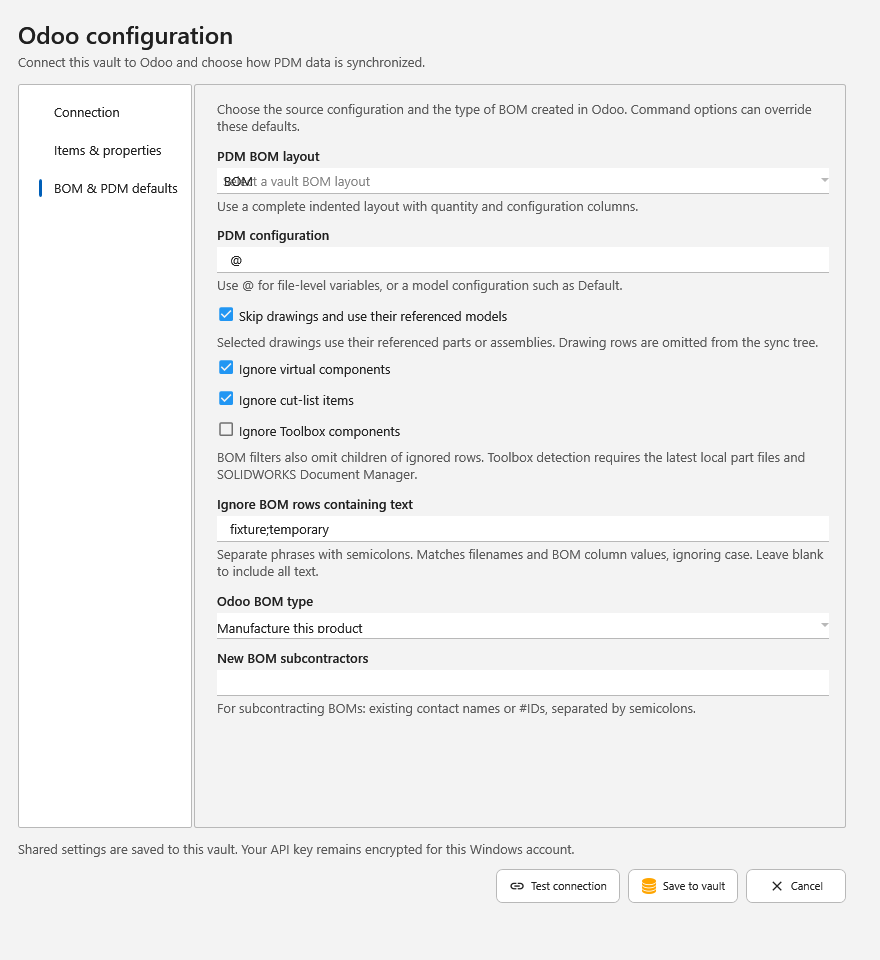
Select a complete, indented PDM BOM layout with item codes, quantities, and configurations. Choose the model configuration to calculate, then select the Odoo BOM type: Manufacture this product, Kit, or Subcontracting.
Computed BOMs use the latest file and reference versions. For subcontracting, specify existing subcontractor names or IDs.
Choose which rows to include under BOM & PDM defaults:
- Skip drawings and use their referenced models is on by default. Select a drawing to preview its referenced parts or assemblies.
- Ignore virtual components and Ignore cut-list items are on by default.
- Ignore Toolbox components is optional. It requires the latest local part files and SOLIDWORKS Document Manager.
- Ignore BOM rows containing text accepts phrases such as
fixture;temporary. It checks filenames and BOM values, ignoring case. Leave it blank to disable this filter.
Ignored virtual, cut-list, Toolbox, and text-matched rows also exclude their children. Review the resulting BOM before syncing.
Preview and sync
Start with a preview of the selected file:
odoo -id 123 -sync all -preview
Replace 123 with the PDM file ID. Choose the sync mode for your task:
| Mode | Push to Odoo | Pull properties to PDM |
|---|---|---|
item |
Creates missing products and updates mapped properties. | Updates mapped data card values for the selected files. |
properties |
Updates mapped properties on existing products. | Updates mapped data card values for the selected files. |
bom |
Updates BOM relationships for existing products. | Unavailable. |
all |
Creates missing products and updates properties and BOMs. | Updates mapped data card values for eligible roots and children in the BOM tree. |
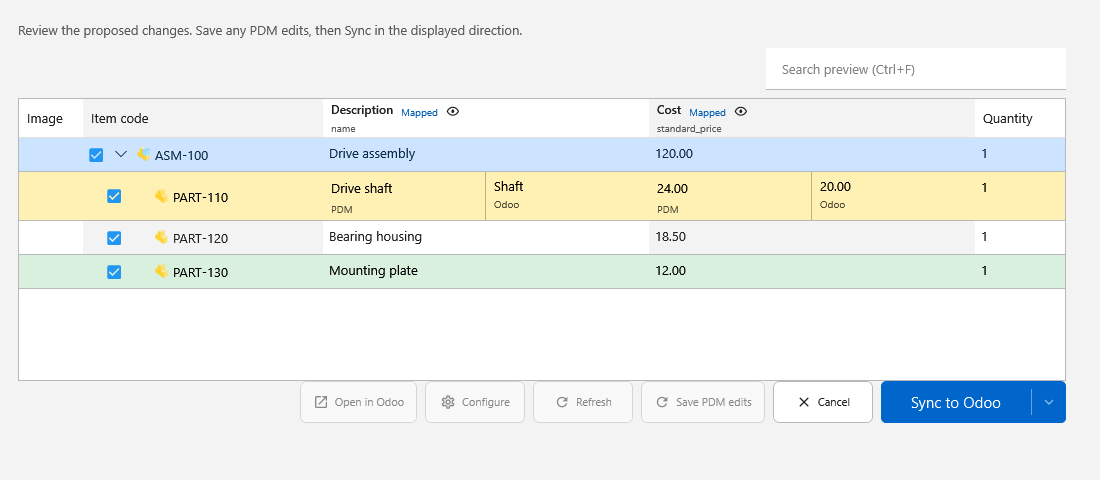
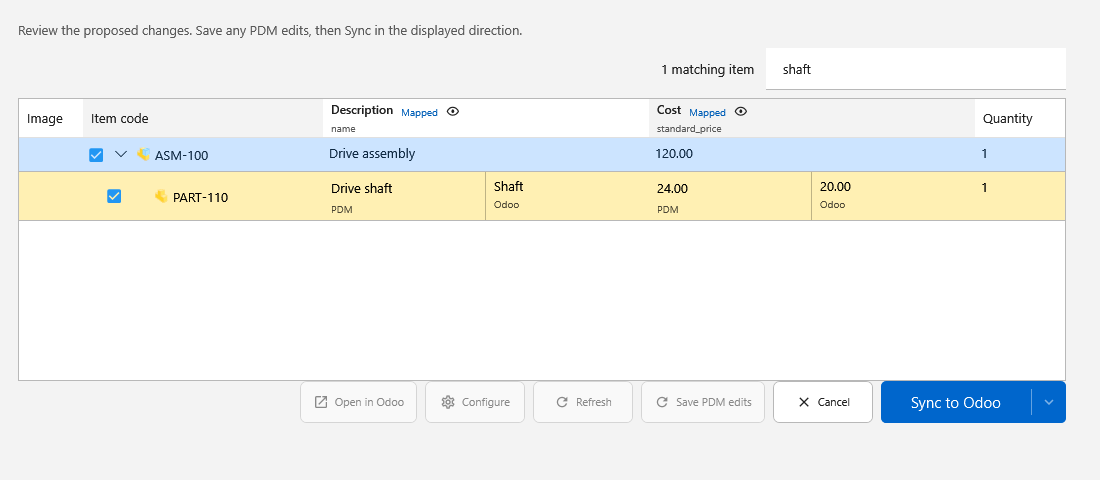
The preview shows thumbnails in the leftmost Image column, followed by the item hierarchy and mapped fields. Green marks additions, yellow marks modifications, and red marks removals. Modified cells show the PDM and Odoo values side by side.
- Review the proposed changes. Uncheck any items you want to leave untouched. Their existing Odoo BOM lines are preserved; unchecking does not refresh the preview.
- Use the BOM icon beside a root item to choose its computed layout or saved BOM and configuration. The connector's BOM filters apply to the preview.
- To edit a PDM value, double-click its cell and choose Save PDM edits. The file must be current and checked out by you. These edits save to the PDM data card.
- Choose the direction from the Sync button's dropdown. Changing direction reloads the comparison and keeps your sync mode when you switch back.
- Choose Sync to Odoo or Pull properties to PDM to apply the reviewed changes.
Opening a preview does not write changes. Saving PDM edits and choosing Sync are separate actions. Running the command without -preview synchronizes immediately.
Pull properties from Odoo
You can pull with item, properties, or all selected. Pull updates mapped PDM data card values; it does not create files or import BOM relationships.
Use all to include the assembly and its eligible child parts and assemblies. Your BOM filters and unchecked items are respected. Get the latest files and check them out to yourself before applying the pull. Files remain checked out afterward.
Repeated components are updated once for each file, configuration, and variable. If different Odoo values target the same PDM value, resolve the conflict before syncing. Map pull values to writable PDM variables; placeholders such as $fileNameWithoutExtension are read-only.
Customize the preview
Use the search box at the top right, or press Ctrl+F, to find item codes, names, field values, or change details. Matching items appear with their BOM parents, even inside collapsed branches. Delete the text or press Escape to restore the previous view.
Search only filters the view. All checked items still sync, including items hidden by search.
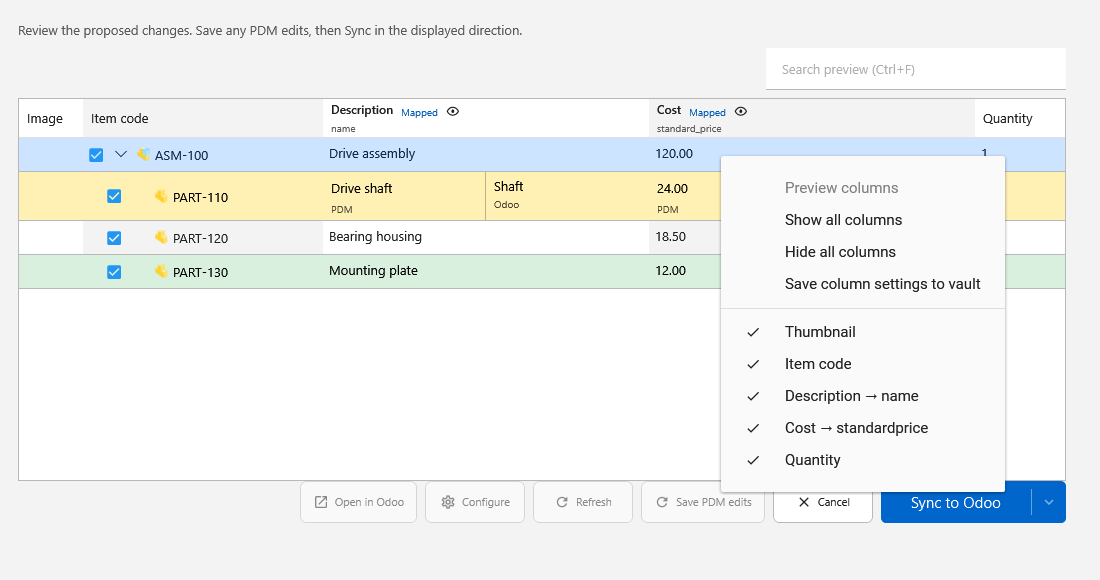
Right-click the preview grid to choose which columns are visible, show or hide all columns, or Save column settings to vault.
Preview screenshots use sample items in PDMShell.
Hiding a column does not disable its mapping or synchronization. If all columns are hidden, right-click the empty grid to restore them. Quantity stays on the right when visible.
The preview follows your PDMShell theme, including its Windows chevrons and title bar.
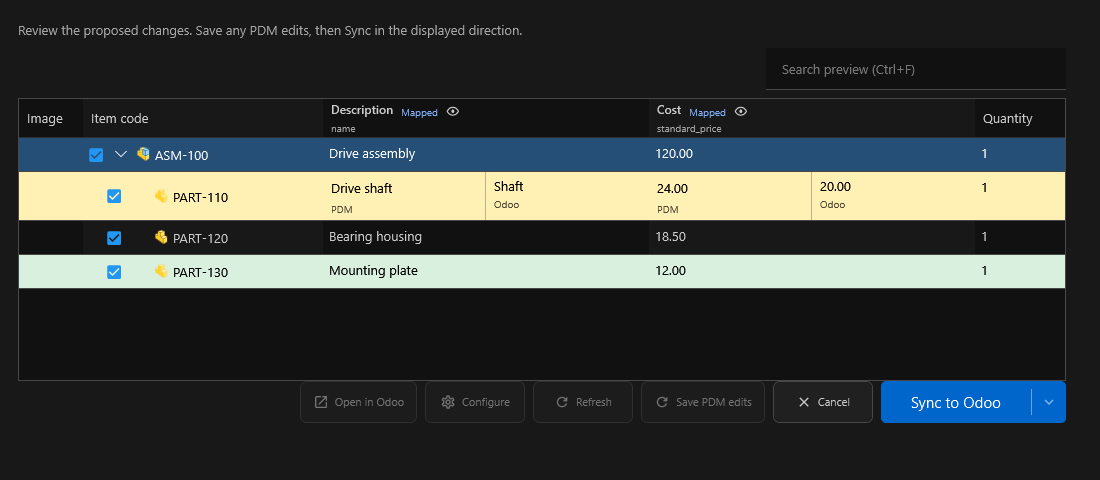
Use Open in Odoo to open an existing product. Product thumbnails synchronize automatically when pushing items or properties; a missing PDM thumbnail leaves the Odoo image unchanged.
More examples
Preview an assembly using a specific BOM layout and configuration:
odoo -filePath "assembly.sldasm" -sync all -layout "Engineering" -config "Default" -preview
Preview property changes coming from Odoo:
odoo -id 123 -sync properties -direction pull -preview
Preview property changes for an assembly and its eligible BOM children:
odoo -id 123 -sync all -direction pull -preview
Use a complete BOM layout: children omitted from the source can be removed from the corresponding Odoo BOM. Unchecked preview items are preserved. BOM import from Odoo and CAD attachment export are not supported.
Search results report
Add -csv "C:\Reports\results.csv" when using -search to save operation results. The first columns are file ID, parent folder ID, file name and output, followed by status and error details. The report folder must exist. New vault reports are added to PDM; existing vault reports must be checked out by you on this computer and remain checked out. External reports are replaced. See CSV operation reports for command-specific outcomes.